Amplenote allows users to customize a "dashboard" that summarizes activity across your account:
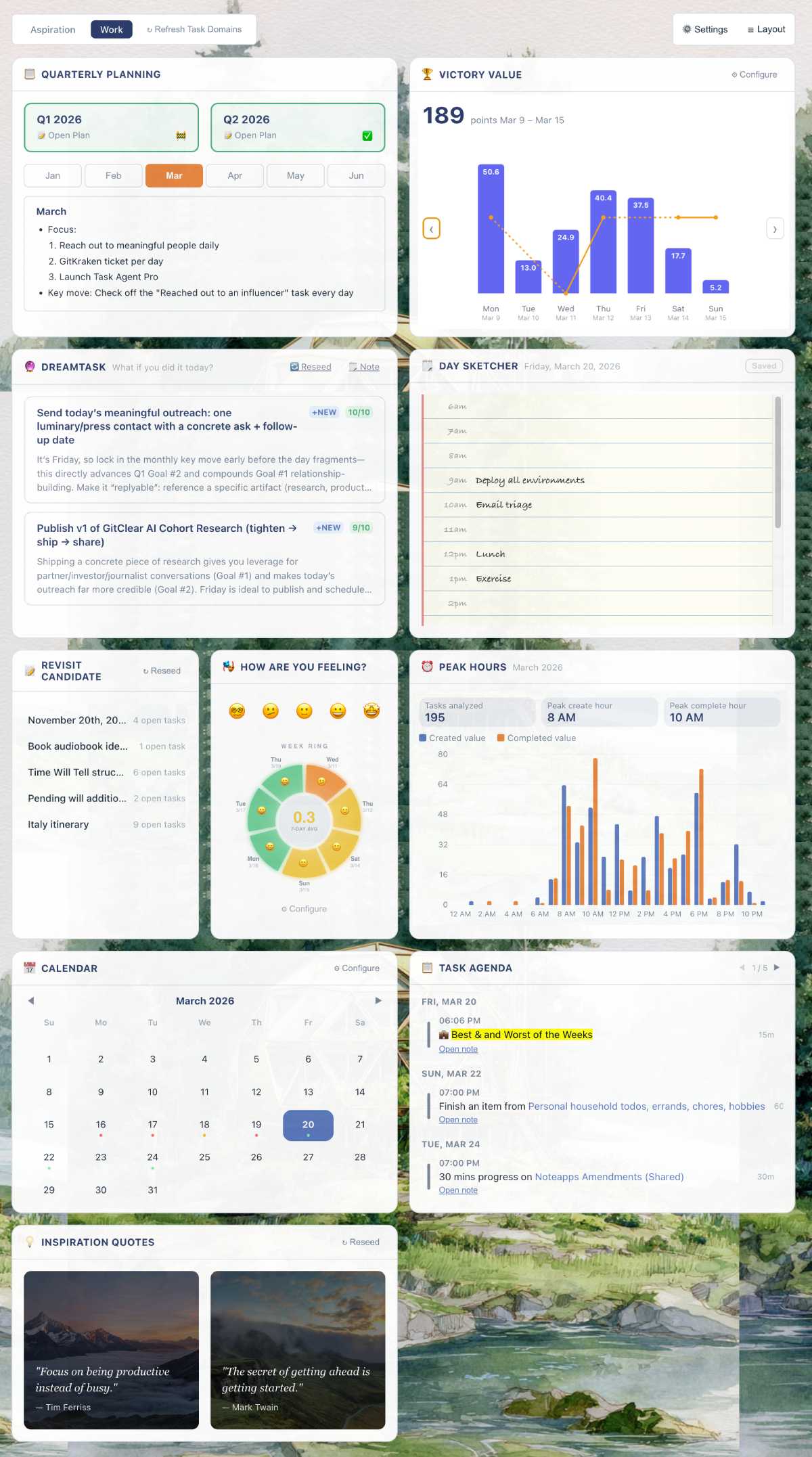
If you don't already have the Dashboard available in your account, see the Enabling an Amplenote Dashboard on Desktop section. The Dashboard is meant to let you curate the information necessary to get your day started with all due haste.
linkAdventures in Dashboarding
The Amplenote dashboard weaves together data from notes, tasks and agenda to offer a quick start to your day.
Next, we will run down all of the components available to the Dashboard user. Remember:
You can reorder the components in your Dashboard by long clicking on their title, then dragging them
You can focus on a single component by clicking on the icon in its title bar
We often add new components, click "Layout" occasionally to see if there's a new one available to add?
linkFancy a Youtube demo?
link🌎 Picking a Task Domain
Most of the widgets within the Dashboard pick notes and tasks pertinent to the Task Domain you have selected in the top bar of the component.
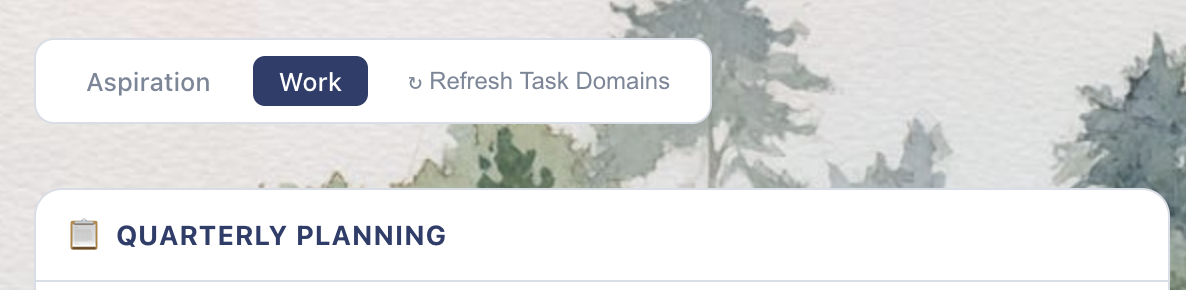
Above Quarterly Planning, browse a list of your Task Domains
If you haven't set up a Task Domain yet, check out these instructions or this video. By default, the "Work" task domain includes any note that has a "todo" tag applied to it. We recommend using tag hierarchies like todo/project-a and todo/project-b/writing to help yourself navigate through lots of todo list notes.
link📜 Quarterly, Monthly, and Weekly Planning
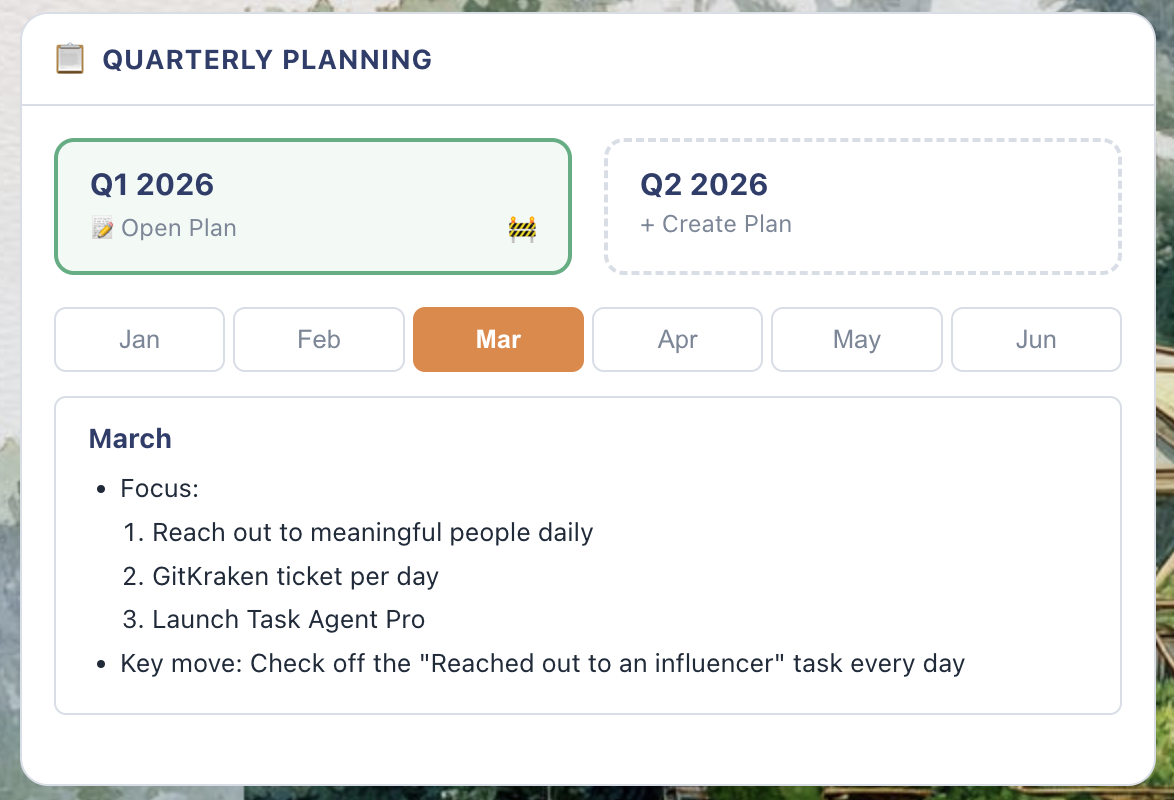
Today's leading thinkers like Cal Newport relentlessly advocate for periodically thinking about your life in long-term increments, and there is good reason. Amplenote helps you realize your own aspirations by making your "Quarterly Plan" the default upper-left widget. When it is one-tall, you'll get something like:
When you create a new quarterly plan, we launch a template inspired by the Deep Work quarterly plan, inasmuch as it has been discussed online.
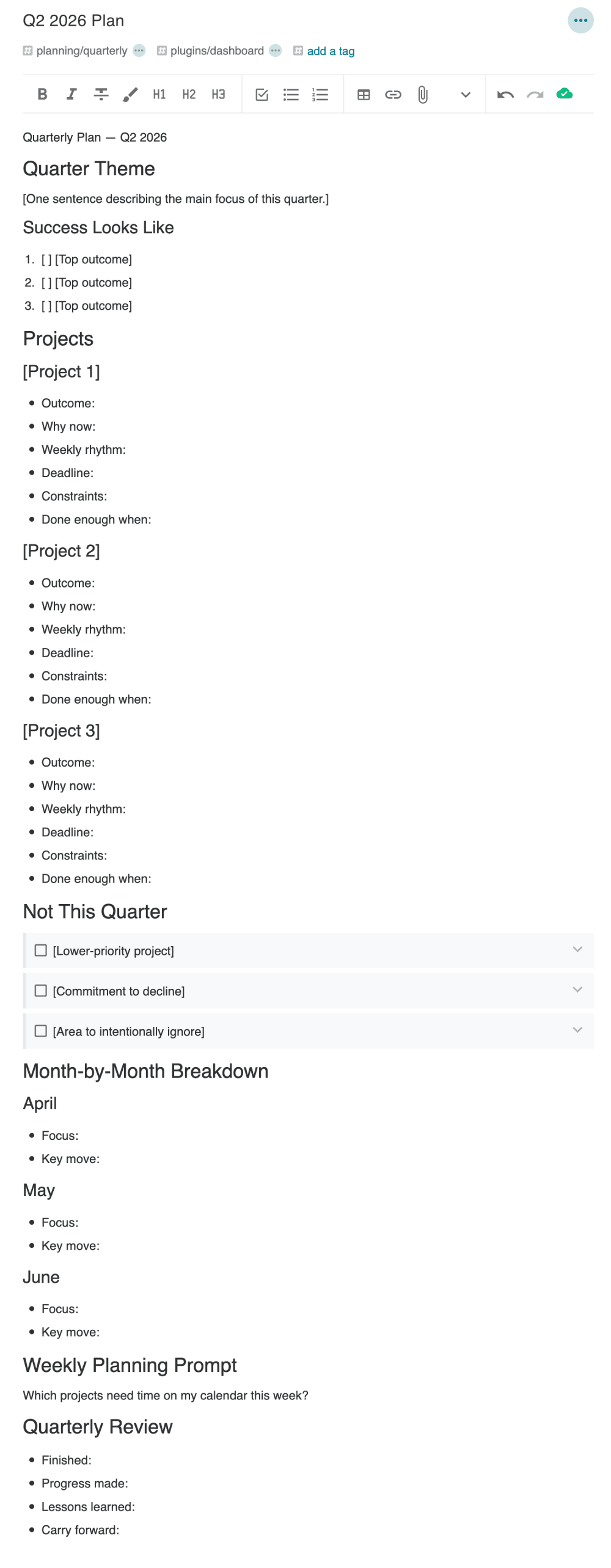
Starting point to plan a quarter
As you think through your options on what defines "success" for the current (or upcoming) quarter, the ideas propose have multiple impacts:
The monthly or quarterly plan is summarized to be visible in the "Planning" widget, so the thing that you think matters stays front-and-center, every day.
When the DreamTask widget is enabled, it uses your current quarterly note as context, to propose which of your tasks (or which new tasks) would do most to draw you toward your hopes & dreams
When the Task Trash widget is enabled (coming March 2026), your quarterly plan is used to pick out which tasks you might be able to safely retire
If you set the Planning widget to be two cells tall, it will show your weekly plan (inasmuch as you opt to compose one) below your monthly plan. It, too, will be used to inform suggestions about salient tasks to work on today.
link🏆 Victory Value vs Energy Level
Leverage your history as the supreme task list master to inspire further progress.
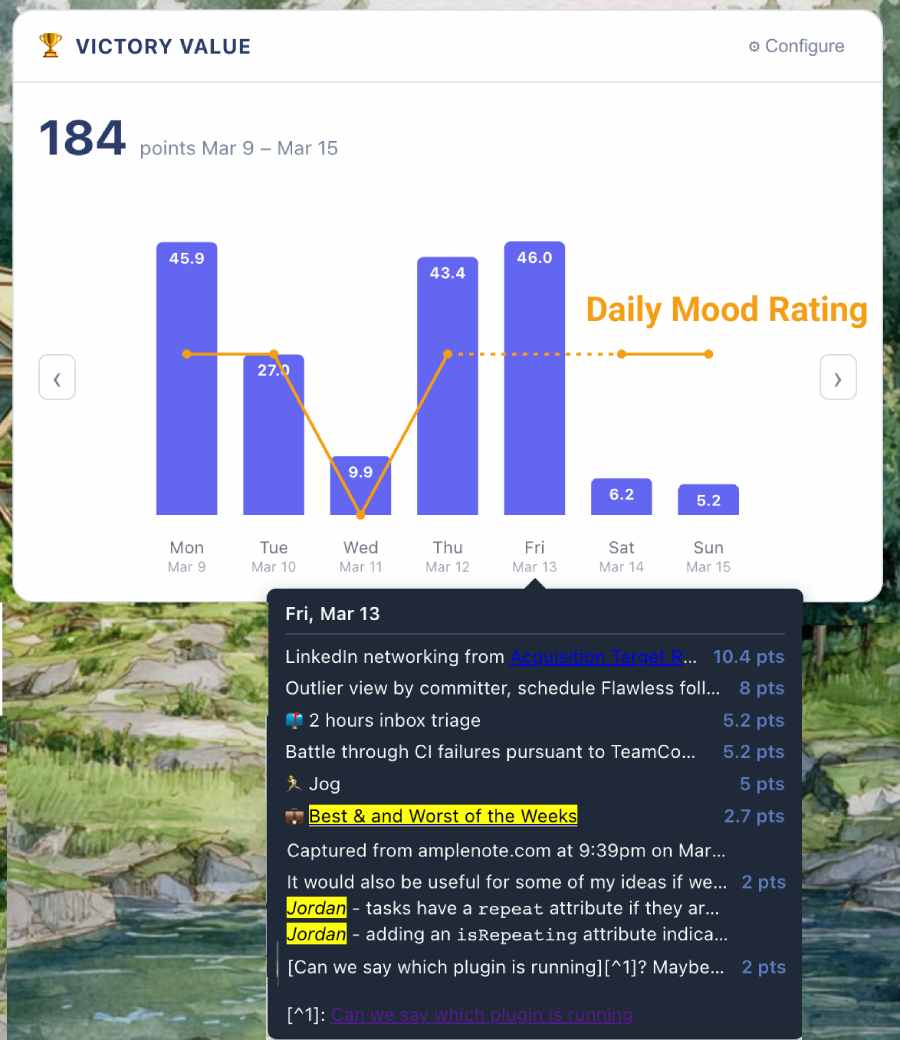
Victory Value and Mood Rating by day for the week selected in Calendar Widget
You can optionally disable the Contentment (Mood Rating) overlay. The main reason it is included by default is Amplenote Founders' belief that getting a lot done isn't worth it when it comes at the expense of day-to-day satisfaction. The secondary reason it's included by default is that, when you're having a bad day and nobody wants to hear about it, there's a certain satisfaction in making sure a record exists to remember "avoid these circumstances."
Start with a one minute clip where Cal Newport explains the proven the benefits of assigning a -2 to +2 rating to each day to iterate toward an optimal life, even when you don't know what "optimal" means beforehand.
As Cal Newport explains in this clip quoting Jim Collins ("Good to Great"),
"So I started creating a code, which is +2, +1, 0, -1, -2. The key on all this is you have to do it every day in real time. You can’t five days later look back and say, “How did I feel that day?”
This is a totally subjective 'How quality was the day?' A +2 is a super positive day." More of Jim's thoughts on rating his days.
He then continues, "[tracking mood] has proved to be incredibly useful for me, because now what you can do is look over the last five years, and ask "what’s going on in all the +2 days?" And over the last five years, "what’s going on in the -2 days?" And now, as I navigate, it’s kind of like the "Simplex Method" in Operations Research -- where you find "Optimal" while never really knowing that "Optimal" is ahead of time. You do it by a series of iterative steps of the next best step."
Jim's continued explanation of the benefit he has received.
Emphasis ours; what better way to describe the plight of an Achiever than "needing to find 'Optimal' without knowing what 'Optimal' is ahead of time"? Already, in less than a year since Mood Rating was added to Amplenote, members of the Amplenote Founder team have discovered multiple patterns in the +2 and -2 days that would not have been intuitive without applying the ideas passed to us by the productivity luminaries.
link🧙 Proposed Agenda
Considering all the tasks in your selected Task Domain, which ones fit best with what you've already got going on today?
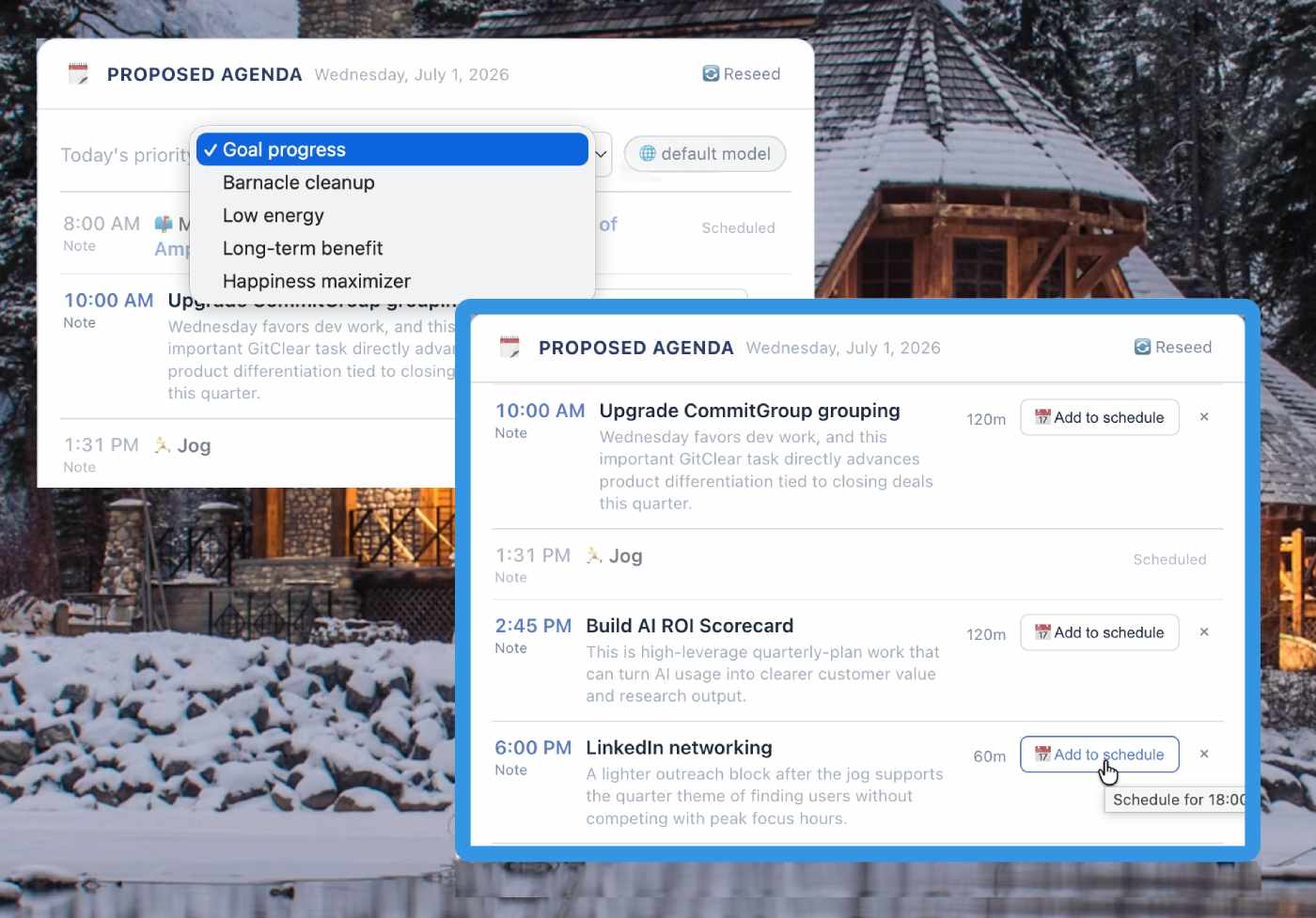
Pick a priority, Proposed Agenda has substantiated opinions on what you ought to be doing
If you're not satisfied with the suggestions, you can choose a different priority, or change AI provider to see whether your results improve with another opinion.
link🔮 Goal Coach
What could you get done today? If you've added an LLM key to the Dashboard Settings & some details to your Quarterly Plan, DreamTask has suggestions:
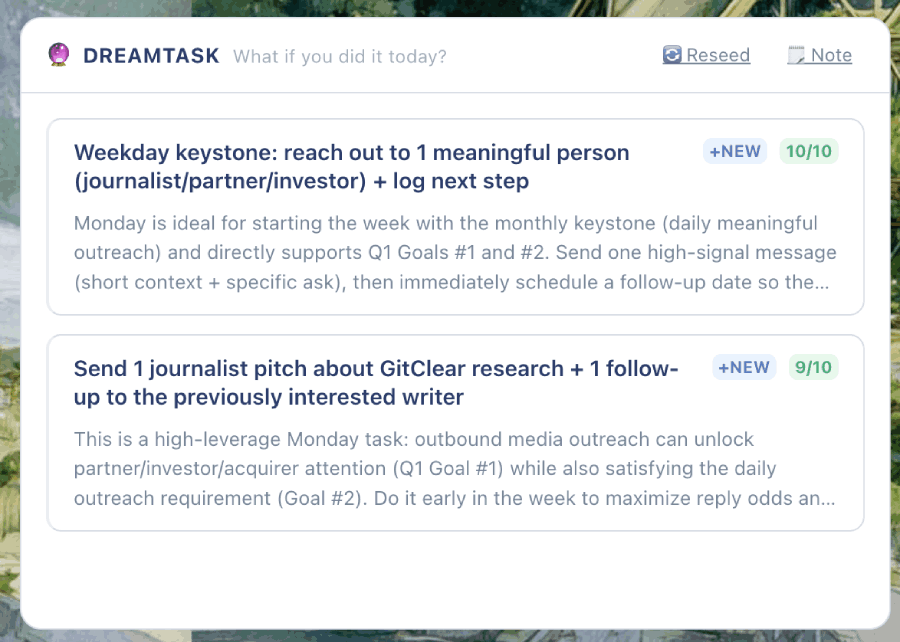
DreamTask combines tasks from your selected Task Domain, with new tasks that combine "Quarterly Goals" with the current day of the week. Click on a task to navigate to it or create it within the note that has the most tasks.
Larger sizes for the widget generate a higher number of suggestions. A record of past suggestions is kept in order to avoid making repeat suggestions within the same week.
link🗒️ Day Sketcher
It's hard to make scheduling a day easier than Amplenote's default drag-and-drop Calendar. But Day Sketcher gives it a run for its money.
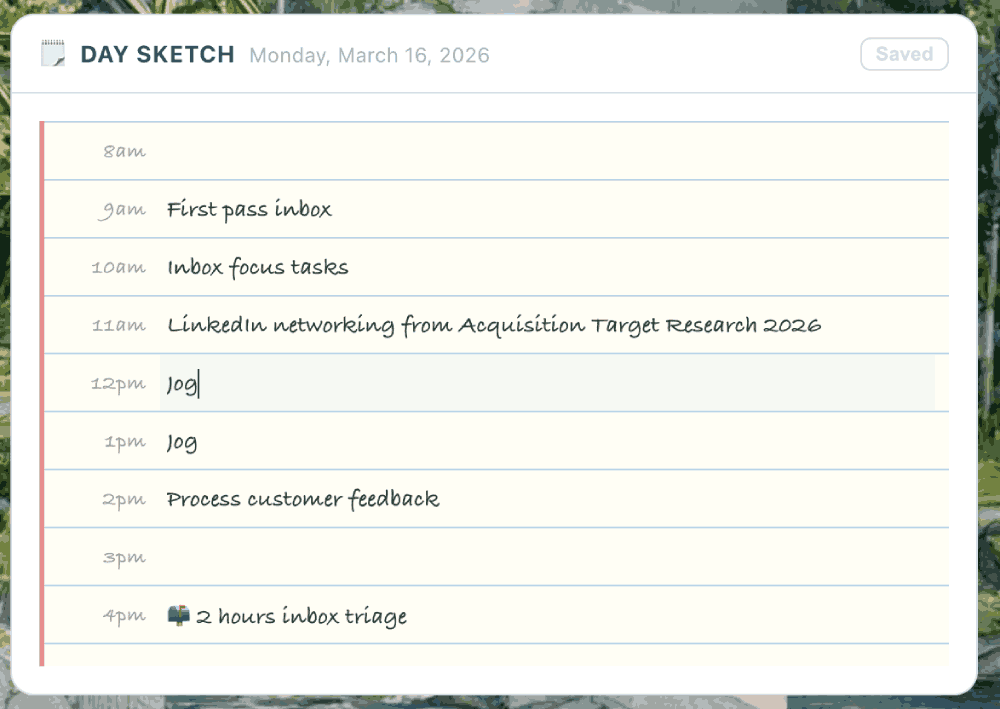
Use tab and shift-tab to navigate between hours of the day
When you open Day Sketcher on a new day, it will be auto-populated with any tasks (and soon, events) that are formally scheduled on your Amplenote, or third-party connected, calendars. As you sketch out the rough outline for what goes between the schedule tasks, your ideas will be written to a note that allows the schedule to be persisted across devices. Writing your sketch to a note also offers an ad hoc history of what you've focused on from day-to-day.
link🕰️ Revisit Candidates
Are there notes within your Task Domain that have been languishing? Revisit Candidates picks out past projects you were working on, offering you an opportunity to resume your progress on a past goal.
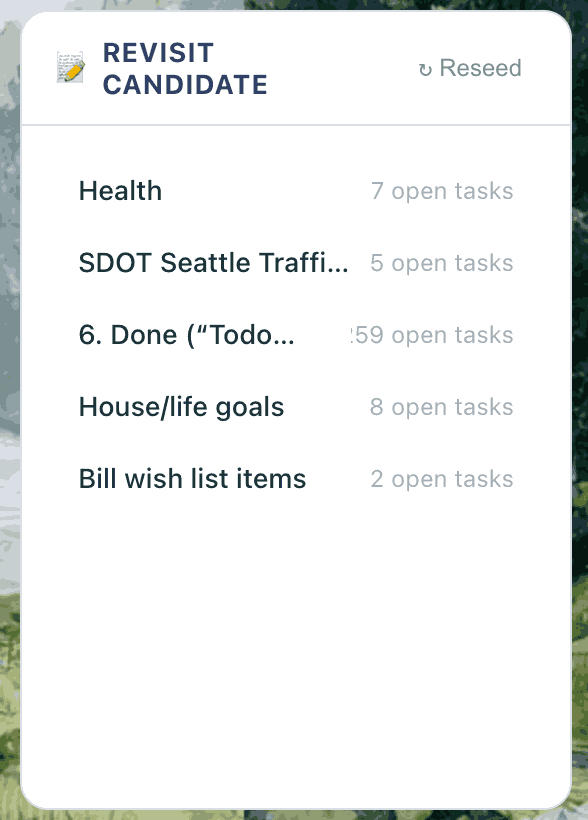
Notes with tasks that haven't been visited lately
By early Q2 2026, this component will keep a history of past suggestions to ensure maximum variety of suggestions from day-to-day.
link🎭 Energy Tracker
It's hard to predict in advance what sort of agenda will leave you feeling energized afterward 📈😊. The Satisfaction Meter helps you optimize your life toward an agenda that balances pure productivity with "enjoyment."
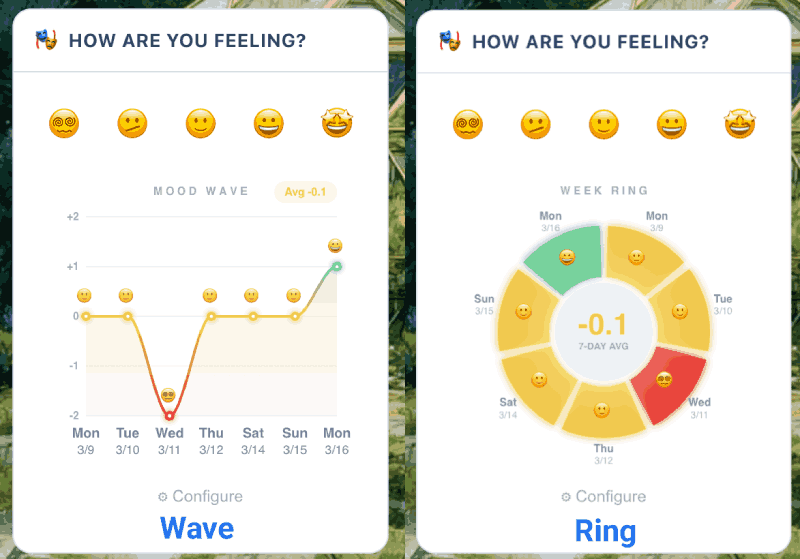
Click an emoji to record a new rating. See recent ratings in whichever form inspires.
Use the "Configure" link at the bottom of the component to toggle between the visualizations. These ratings are also shown in the Victory Value component. Changing your selected date on the calendar will refresh the ratings shown.
link🏃 Habits by Energy Impact
When you take advantage of flexible recurring tasks to remember to stay on top of long-term habits, like exercise, social activity, calling grandma, etc., then you'll be naturally building data that you can use to discover how "exercise" or "calling family" impact your energy level for the day:
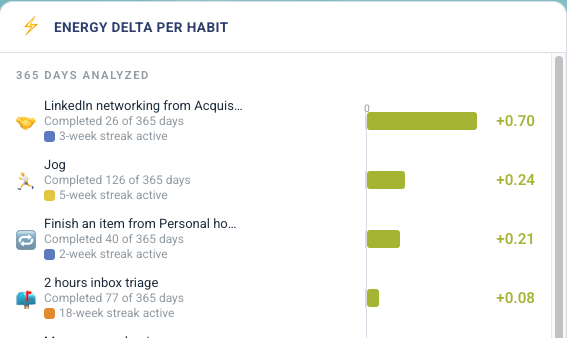
How many times was each habit completed in the past year?
The longer you use Amplenote, the more informative the Energy Delta per Habit component becomes.
link⏰ Peak Hours
Which hours in a given month yielded your maximum creative or completion energy? The Peak Hours widget lets you visualize the Victory Value of your completed tasks, based on the time of day they were created or completed.
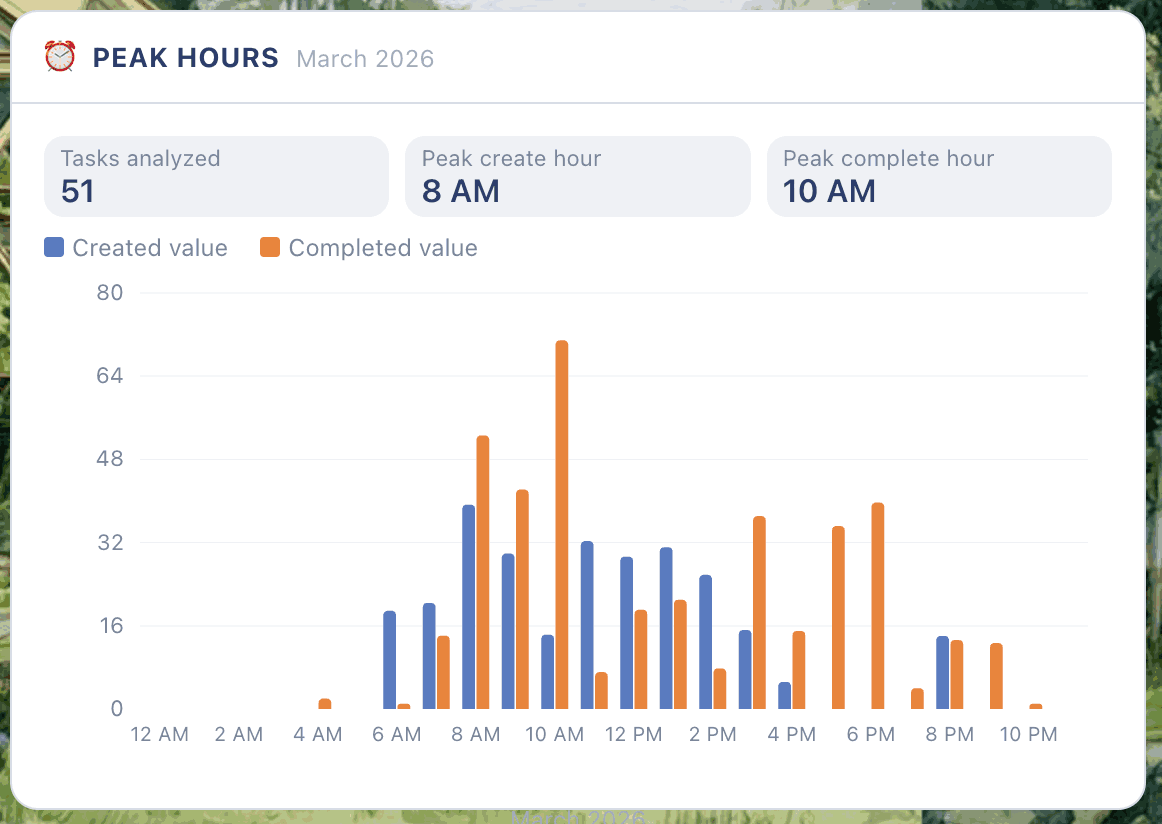
When were tasks with high Victory Value created, and when were they completed?
As with other components described, this data draws from your selected Task Domain and the date selected on the Dashboard Calendar.
link📆 Calendar
The Calendar widget acts as the "control center" for data presented in other widgets. When you choose a different week or month, you can see historic data from your completed tasks.
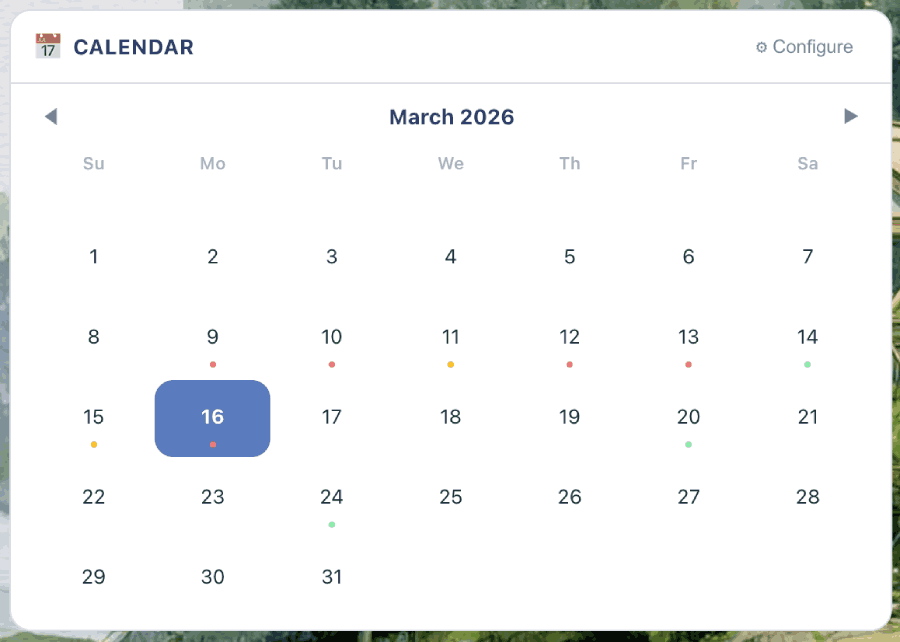
A 2-wide calendar. Past days are colored by how much got done, future days are colored by how much is scheduled
In addition to controlling the "Victory Value," "Satisfaction Meter," and "Peak Hours," the calendar date selected also controls what Agenda tasks are shown.
link📋 Task Agenda
What's on the docket for today?
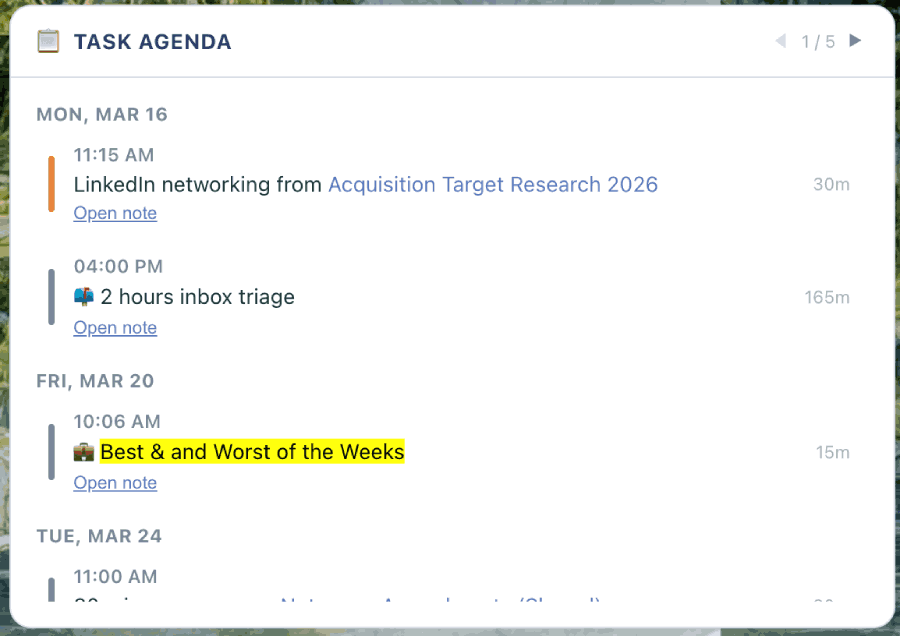
Task Agenda presents scheduled tasks for the current day
By early Q2 2026, this widget will also begin to show events that are scheduled from your external calendars.
link💡 Inspiration Quotes
A selection of 100 quotes & ideas to help put you in the frame of mind to make forward progress.
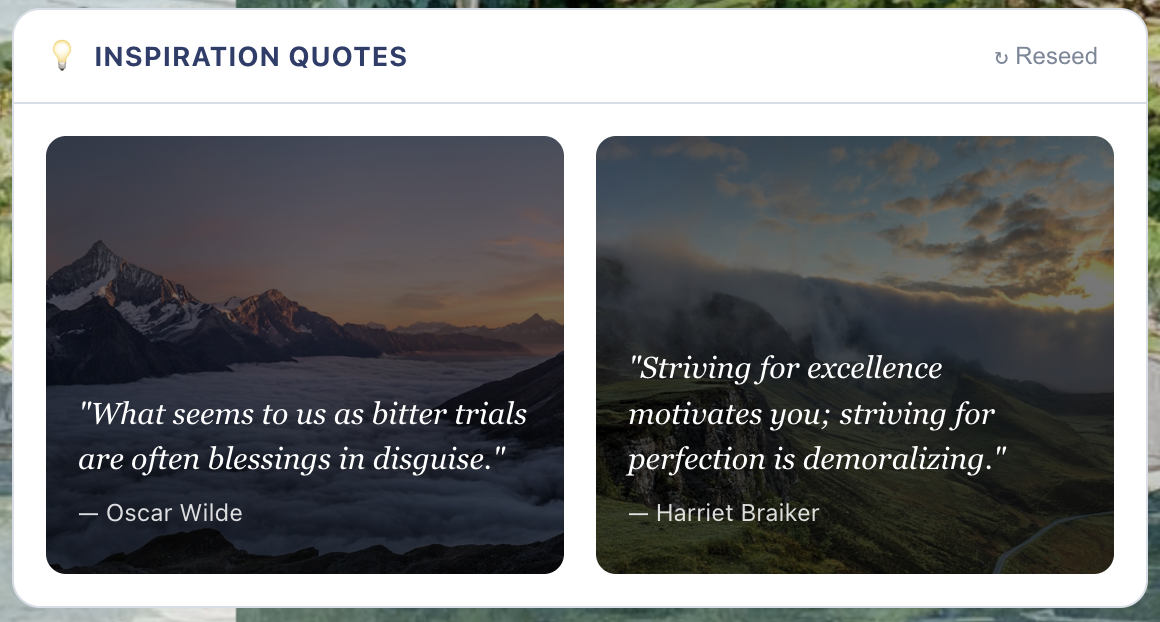
A pep talk never hurts to help take the first step
link🏃 Quick Actions
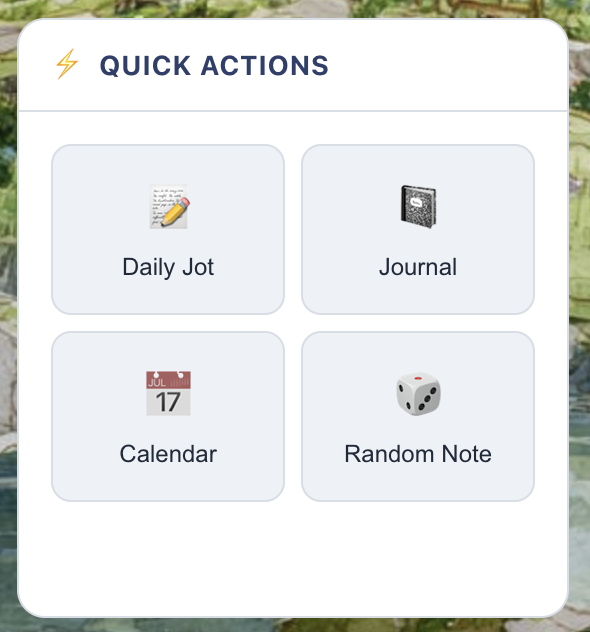
Visit random notes, jump to your daily journal, and more.
link👬 Shared Notes
What shared notes have changed lately?
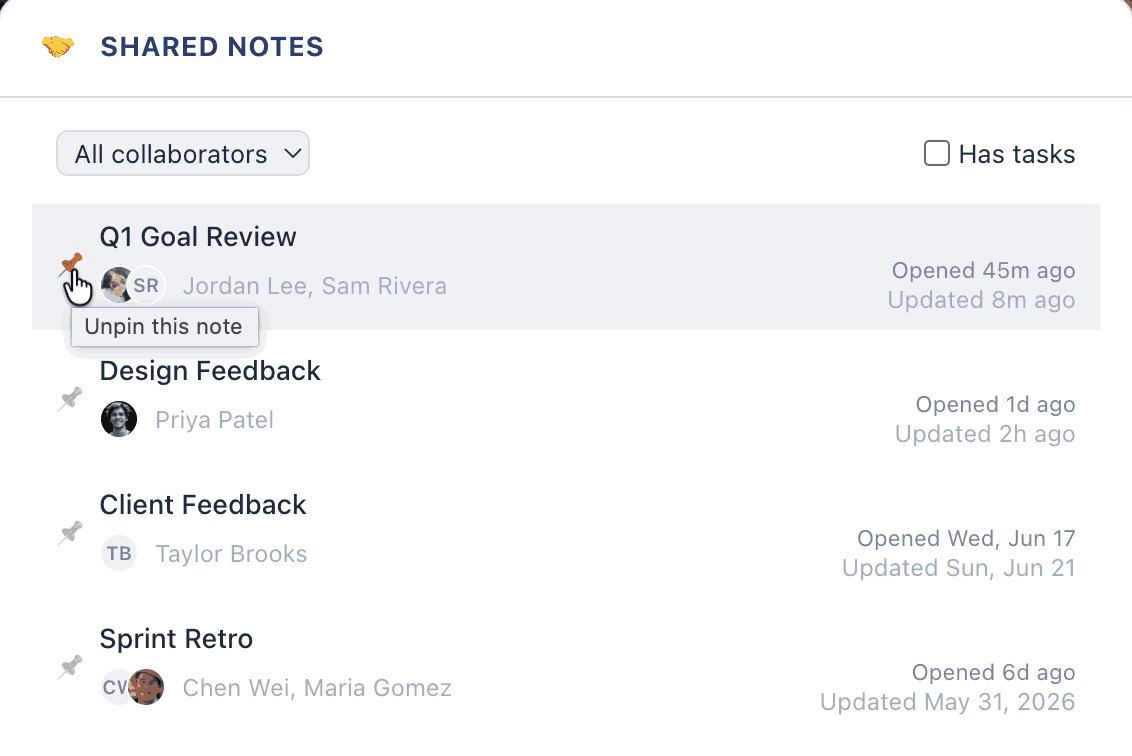
Browsing recently updated shared notes
Pin a note if you want to remember to follow up on it later. If you want to see all notes that you are working together on, choose a particular collaborator.
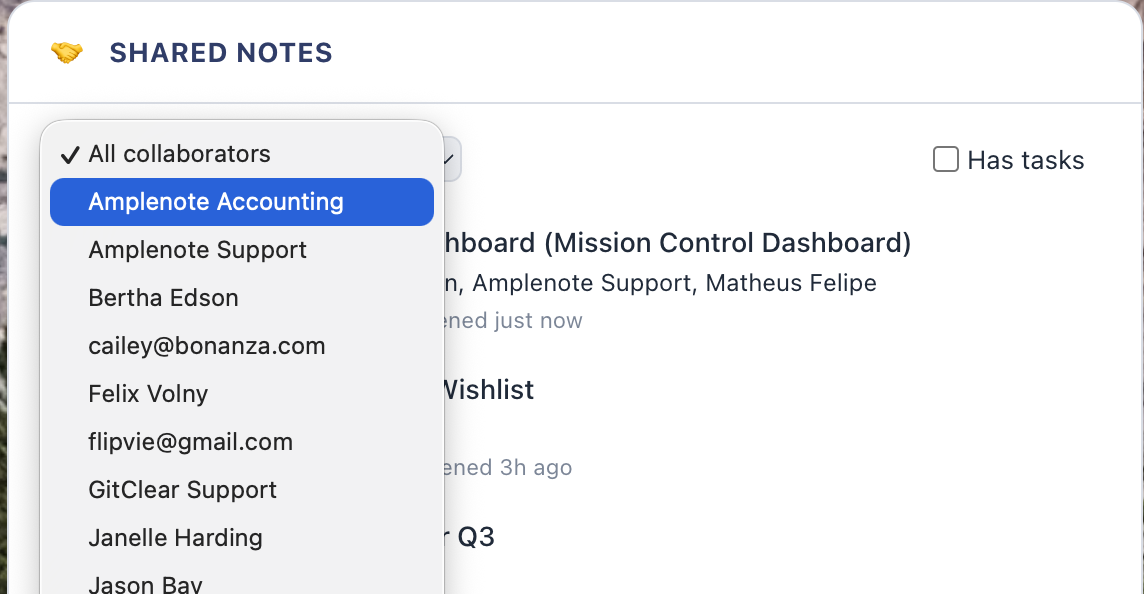
Any collaborator with a note updated in the past year is shown in the filter
link⚙️ Dashboard Settings
Control your Dashboard Background and which LLM provider you would like to use to generate suggestions within the Dashboard Widgets that interpret the Quarterly Plan to translate it into suggested tasks.
link⤴️ Reordering & Resizing Components
There are two options to reorder the widgets/components in your Dashboard. One option is to click the "Layout" link in the upper right and drag components into preferred order. The other option is to click on the header of a widget for two seconds. After two seconds, it will begin to shake, and it can be dragged to a different position on the dashboard, where it is saved upon release.
The "Layout" component is also where you can control the size of the widgets on your dashboard:
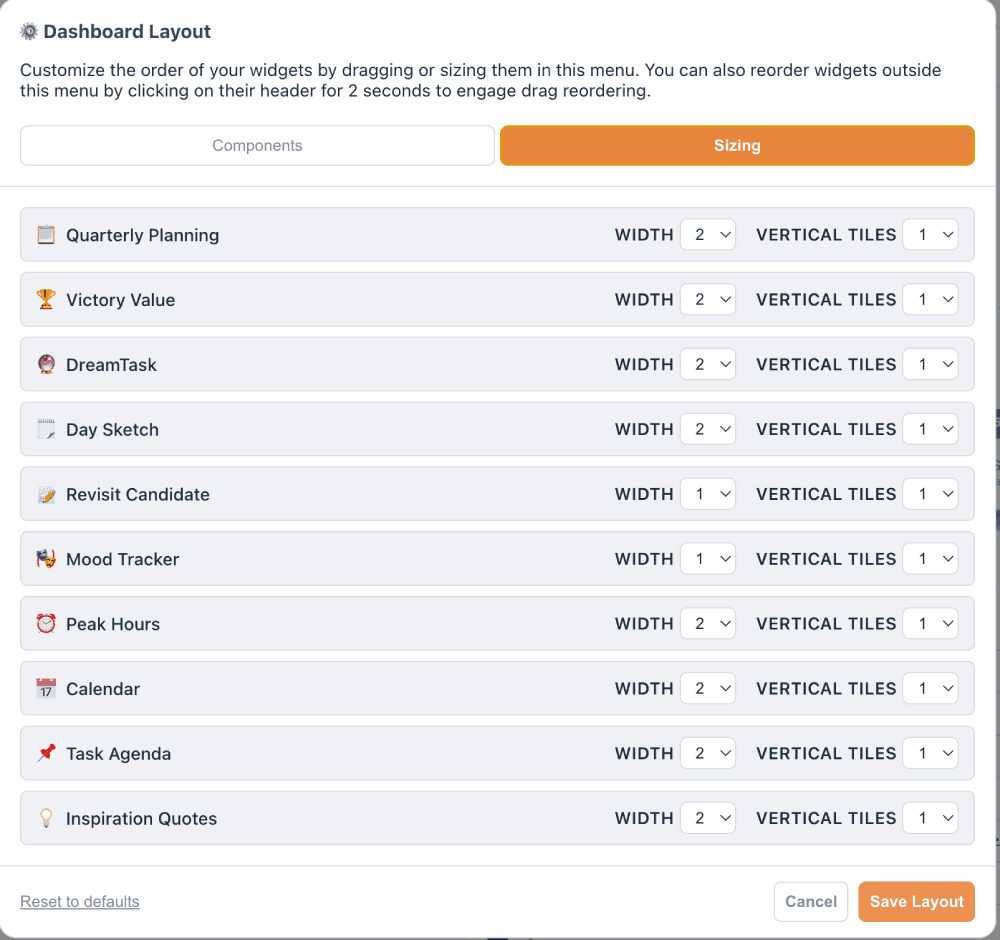
Click the "Sizing" tab to control the size of the various widgets
linkHiding widgets
The "Components" tab under "Layout" allows you to drag components into the "Hidden" section if they don't provide enough value to you.
Also, when new components are added to the dashboard by developers, they often begin life in the "Hidden" section. Any time you update your Dashboard component, take a gander at your "Layout" settings to discover if new widgets have become available. 🚀
link📱 Dashboard on Mobile
Still a work in progress as of March 2026, but available if you can jump through a couple hoops.
Instead of having it available by clicking on the "Notes" pane, it is currently available by opening "Quick Open" and picking "Overview Dashboard (full)." This will open the dashboard in your left pop-out menu, so you can now access it by opening this menu and picking the option below Shortcuts.
1. Pick in Quick Open 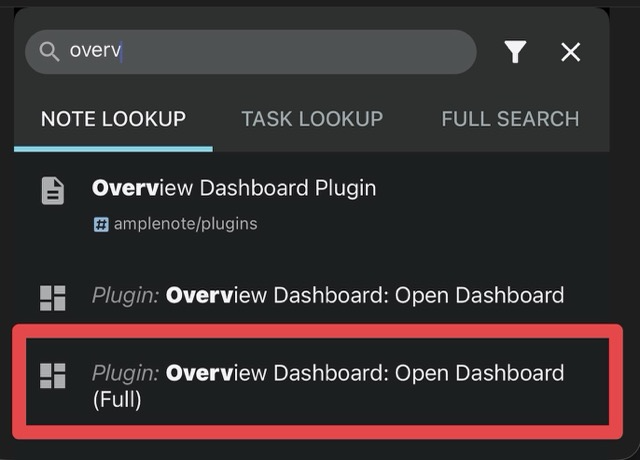 | 2. Open Left Menu and pick Overview Dashboard 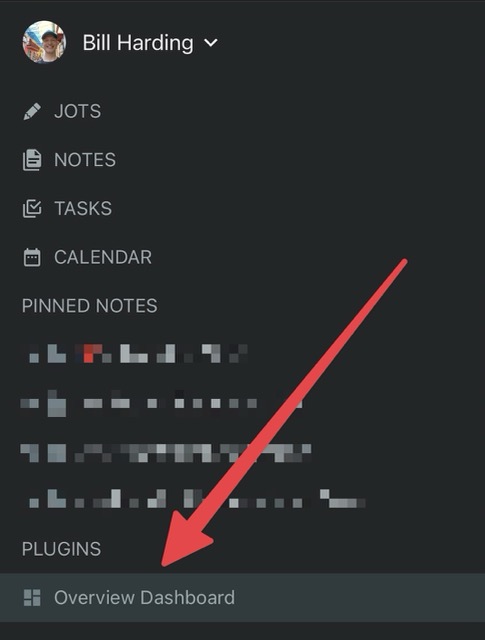 | 3. Quick Return via History 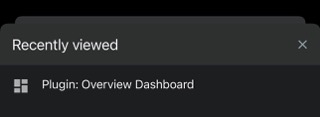 |
This will open the same dashboard as desktop, but formatted for mobile.
By the end of April 2026, the mobile Dashboard will be available via a link above "Notes."
linkEnabling an Amplenote Dashboard on Desktop
New Amplenote accounts have the Dashboard enabled by default.
If you registered your account before 2026, to enable your Amplenote dashboard, first install a plugin that supports dashboards. Then, after clicking on the "Notes" pane, click the button to "Customize" your dashboard area:
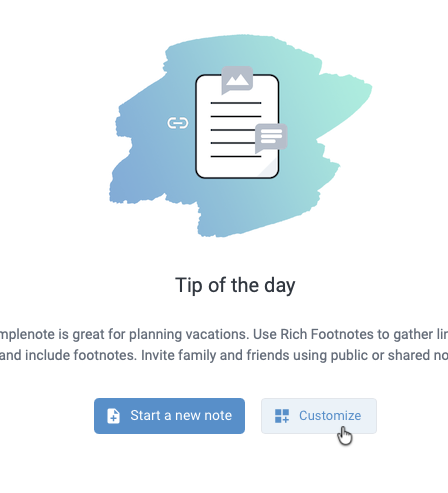
After clicking "Notes" in leftmost panel on web/desktop to enter Note pane
This will pop up a list of plugins potentially capable of rendering a dashboard.
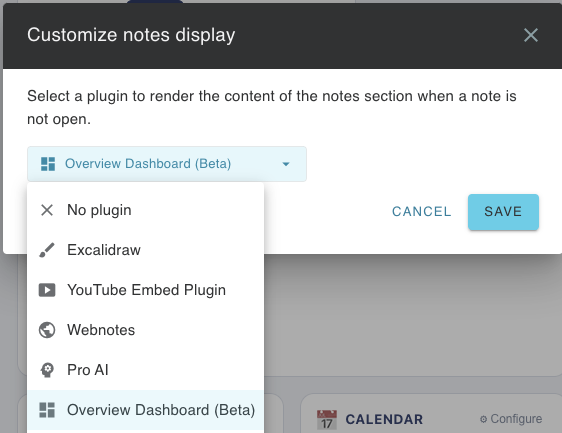
Installed plugins that may be able to render a dashboard
The Overview Dashboard plugin is being developed by Amplenote as a customizable collection of panels to reveal interesting and useful data. It is expected to reach a full & interesting v1 by late March 2026. Hopefully other plugin authors will create their own interesting ways to visualize data, perhaps by building from the Overview Dashboard code as a starting point?
The plugin was authored almost exclusively through Cursor and Claude Code, so you can continue to augment its features by leveraging the latest AI tools