Amplenote supports importing content from many apps. This page will summarize the best practices for importing from the most popular apps, with a link to more detailed instructions where available.
linkWhat content is imported from where
Every app stores its data a little differently, so what makes it into Amplenote varies by source. "With little effort" means the built-in importer (or a quick copy-paste) handles it. "With high effort or a desktop LLM" means it's possible, but you'll need to do some manual cleanup, or hand the job to a desktop LLM connected to Amplenote (see Elaborate migrations with a desktop LLM below).
✅ = with little effort · 🛠️ = with high effort or a desktop LLM · ❌ = unavailable · — = not applicable
Content type | Obsidian | Evernote | Todoist | Markdown zip | Roam | |
Note text & formatting | ✅ | ✅ | — | ✅ | ✅ | ✅ |
Images | ✅ | ✅ | 🛠️ | ✅ | ✅ | 🛠️ |
Other attachments (PDF, Office docs) | ✅ | ✅ | 🛠️ | 🛠️ | ✅ | 🛠️ |
Links between notes | ✅ | ✅ | — | 🛠️ | ✅ | ✅ |
Tags, folders & notebooks | ✅ | ✅ | 🛠️ | ✅ | ✅ | ✅ |
Tables | ✅ | ✅ | — | ✅ | ✅ | 🛠️ |
Tasks (to-dos) | ✅ | ✅ | ✅ | ✅ | ✅ | ✅ |
Task dates, priorities & labels | ✅ | ✅ | 🛠️ | 🛠️ | 🛠️ | 🛠️ |
Databases & structured properties | ❌ | — | — | 🛠️ | — | 🛠️ |
Original "created" dates | ✅ | ✅ | 🛠️ | ✅ | ✅ | ✅ |
Want more coverage for an importer? Cast your vote on Suggested Features list – we improve our importers most every month.
link Import from Obsidian or markdown
Obsidian is the most common starting point for new Amplenote users, and since an Obsidian vault is just a folder of markdown files, almost everything comes across in a single pass: note text and formatting, images, links between notes, tags, code snippets, and any attachments Amplenote supports. What won't carry over automatically are features that live in Obsidian plugins (Dataview queries, Canvas boards, Kanban) and task metadata like the 📅 due dates added by the Tasks plugin. If you're determined, a desktop LLM can read your vault directly and rebuild those tasks as real Amplenote tasks with start dates, convert Dataview results into static tables, and turn your folder structure into tags.
tl;dr: Open your vault folder in Finder or File Explorer, select the notes you want (Cmd-A / Ctrl-A for everything), and compress them into a single .zip file. Then in Amplenote go to Account Settings → Import & Export → Import from Markdown, click "Choose a markdown or zip file," and pick your zip. Full instructions: Import from Obsidian.
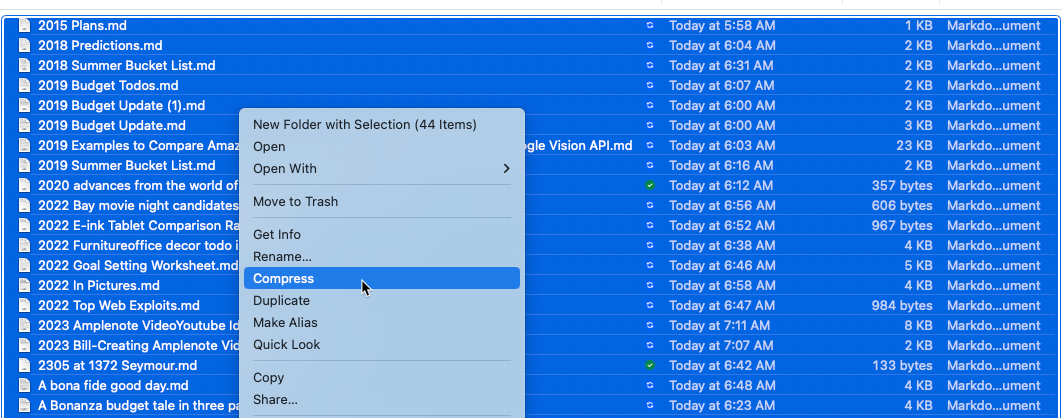
Compressing the files in an Obsidian vault into a zip on macOS
link Import from Evernote
Evernote has the most complete importer of any source. Notes, tags, formatting, indented lists, to-dos, images, tables, headings, and PDF/Word/Excel/PowerPoint attachments all come across from an .enex export, and there's no cap on how many notes you can bring (though very large imports can take a few hours, and keep running if you close Amplenote). Every imported note gets the tag imported/evernote. The main things lost are your notebook structure (notebooks don't become tags on their own), links between Evernote notes, and reminder dates. A determined user with a desktop LLM can map each notebook to its own tag, re-point internal note links, and turn reminders into scheduled tasks.
tl;dr: In Evernote, right-click a notebook and choose Export notebook (or select notes and use Export), save as .enex, and be sure to check "Include tags for each note." Then in Amplenote go to Account Settings → Import & Export, choose your .enex file, and click "Start import." Full instructions: Importing from Evernote.
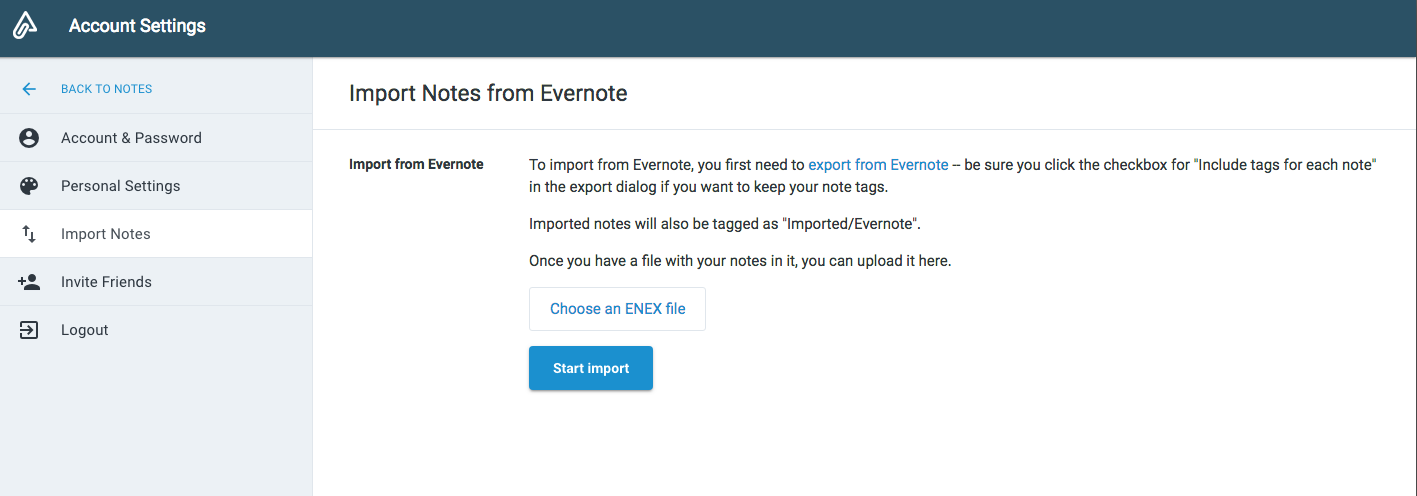
Choose your .enex file and click "Start import"
link Import from Todoist
Todoist imports are semi-manual. With a few minutes per project, you can bring over every task's content and description by pasting them into a note and converting the lines to tasks. Everything else, including due dates, priorities, labels, subtask nesting, and comments, is lost with the easy method. If you're determined, this is the source where a desktop LLM pays off most: it can read the Todoist CSV backup (or the Todoist API) and recreate each task in Amplenote with its start date, turn labels into tags or note references, and put each project into its own note.
tl;dr: In Todoist, go to Settings → Backups and download a backup zip (one CSV file per project). Open each CSV in Google Sheets or Excel, delete every column except Content and Description, and copy what's left. Paste it into an Amplenote note as plain text, select all, and click the task button in the toolbar. Full instructions: Importing from Todoist.
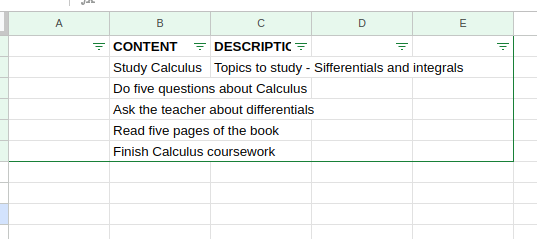
A Todoist project CSV trimmed down to the Content and Description columns
link Import from Notion
Notion's "Markdown & CSV" export brings your regular pages across easily: their text, headings, formatting, and images import through the markdown importer. Databases are the big gap. They're exported as CSV files, which the importer skips, and page layout (columns, embeds, toggles), non-image attachments, and database properties don't come across. If you're determined, a desktop LLM can turn each database CSV into an Amplenote table or a set of notes, turn database rows with checkboxes and dates into scheduled tasks, and re-link pages that referenced each other.
tl;dr: In Notion, open Settings → General (under Workspace) and choose Export all workspace content, or use the ••• menu on one page and choose Export. Set the export format to "Markdown & CSV" and download the zip. Then in Amplenote go to Account Settings → Import & Export → Import Markdown, choose the zip, and click "Start import." You'll get an email when it's done. Full instructions: Importing from Notion.
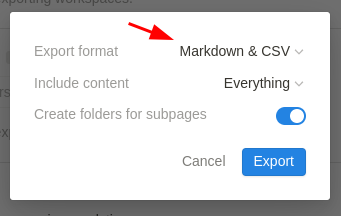
Set Notion's export format to "Markdown & CSV"
link Import from a markdown zip file
Markdown is Amplenote's universal import format, so any app that exports markdown (Bear, Logseq, Joplin, Standard Notes, Google Keep after conversion, and more) can come across easily. A zip of .md files imports images (when they're in the zip), links between notes, formatting, headers, quotes, code blocks, and inline literals. Front-matter title, created, and tags fields are read too, so notes keep their original names, creation dates, and tags. Tables and task metadata are the main gaps. If you're determined, you can generate markdown from almost anything (even a SQLite or MySQL database, such as Things 3's) or have a desktop LLM add front matter and clean up your files before importing.
tl;dr: Export your notes as markdown from your current app, then compress the .md files (plus any images they reference) into one .zip. In Amplenote go to Account Settings → Import & Export → Import Markdown, choose the zip, and click "Start import." For a single file, just drag the .md file into your notes list. Full instructions: Import from Markdown. Coming from Google Keep? See Importing from Google Keep.

Settings → Import → Import Markdown
link Import from Roam
Roam's JSON export brings over all of your pages with little effort, including [[note references]], inline #tags (they become note references), images, and {{[[TODO]]}} blocks as real Amplenote tasks. There's no limit on note count, and many users have imported 5,000+ notes. Every imported note gets the tag imported/roam. What doesn't come across cleanly: tables, boards, sliders, and diagrams; attributes:: (imported as plain text); {{[[DONE]]}} blocks (imported as a checkmark rather than a completed task); and encrypted blocks, which can't be decrypted in Amplenote. With a desktop LLM, you can rebuild tables, turn attributes into structured tables or tags, and convert DONE blocks into completed tasks.
tl;dr: In Roam, open the ••• menu (top right), choose Export All, pick the JSON format, and unzip the download to get one .json file. Then in Amplenote go to Account Settings → Import & Export, click "Import from Roam," choose your file, and click "Start import." Full instructions: Importing from Roam.

Amplenote's "Import from Roam" screen
linkElaborate migrations with a desktop LLM
Every 🛠️ in the table above is something a desktop LLM like Claude or Codex can usually do for you. With Amplenote's MCP server turned on, the LLM can read your exported files on disk and write straight into your Amplenote account: it can create notes, insert tasks with start dates, apply tags, and attach images. That turns jobs that would take hours by hand into a single conversation, like rebuilding a Todoist backup with every due date intact, turning Notion database CSVs into tables, or mapping Evernote notebooks to tags.
tl;dr: Turn on MCP in Amplenote Desktop → Settings (Unlimited or Founder plans), copy the config for Claude Desktop, Claude Code, or Codex, and keep Amplenote Desktop open while the LLM works. Run the regular importer first for anything marked ✅, then give the LLM the export folder and describe what's missing. For example: "Here's my Todoist backup folder. For each project, create an Amplenote note with the project's name, and add each task with its due date as the start date. Turn labels into tags." Spot-check a few notes before letting it process everything. Setup instructions: Claude & Codex: Enable MCP access to read and write notes.
If the importer doesn't cover something you need, drop by our Discord, or vote for it on the feature voting board. Founder subscribers can also email support for help with their import.