linkPlugin API Reference Documentation: App interface
The app interface provides the means of interacting with the application. It is passed to all plugin action functions as the first argument. All app interface functions should be considered asynchronous, returning a Promise that will either resolve to the result, or reject if there is an error.
linkRetrieving App Interface as a markdown document for LLMs
When referencing this page via an LLM, it can be faster to retrieve the page via its pure markdown version: https://public.amplenote.com/C8TUXf394zsvrGn8NwXgoJ7f.md
linkapp.addNoteTag
Add a tag to a note.
Arguments
noteHandle identifying the note to add the tag to
String text of the tag to add - note that this will be normalized to conform to allowed tag names (lowercase, dashes), if it is not a valid tag name
Returns
boolean indicating whether the tag was added. In some cases, shared tags cannot be added to notes - and this will return false.
Throws
If the given tag argument is not a string
linkapp.addShortcut
Adds a shortcut to one of the shortcut areas shown in the sidebar (the lists of saved filters/links shown under the Jots, Notes, Tasks, and Calendar areas). Shortcuts are stored in account settings, so they sync to all of the user's clients.
Arguments
area the String name of the area of the app to add the shortcut to. Must be one of "calendar", "jots", "notes", or "tasks".
shortcut an object describing the shortcut, which must include at least one of the following properties (all of which must be String values when provided):
group - filter group to apply. This corresponds to the group= query string parameter when viewing https://www.amplenote.com/notes and filtering on a specific group or set of groups.
query - fuzzy search term to filter matching notes on.
references - note UUID, filtering to notes that reference (link to) the given note.
remoteUUID - UUID of a specific note the shortcut should open.
tag - tag filter to apply. Multiple tags can be specified with a , separator - matching notes must have all specified tags. A tag prefixed with ^ will only match notes that do not have the tag.
The following optional properties can also be included:
name optional String label to show for the shortcut. When omitted, a name is derived from the shortcut's note or filter parameters.
isDefault optional Boolean - when true, the shortcut is set as the area's default shortcut instead of being added to the end of the list.
Returns
true once the shortcut has been added.
Throws an Error if area isn't one of the valid areas, if shortcut isn't an object, if none of group/query/references/remoteUUID/tag are provided, or if any of those values is provided but isn't a String.
link
linkapp.addTaskDomainNote
Ensure the specified note is included in the specified task domain. If the note is already included in the task domain by virtue of a tag the note has, the note will be included directly in the task domain such that removing the tag from the note will leave it in the task domain.
Arguments
String task domain UUID, which can be obtained by calling app.getTaskDomains
noteHandle identifying the note to add to the task domain. Will not create a new note if the note handle describes a note that does not yet exist.
Returns
boolean indicating whether the note was added to the task domain (or is already included in the task domain). A return value of false generally indicates an issue with the note handle (e.g. it identifies a note that doesn't exist, is malformed, etc).
Throws
If the given task domain UUID does not correspond to any task domain
linkapp.alert
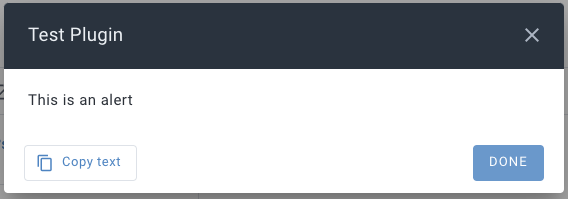
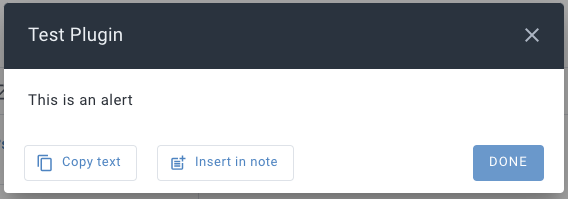
Show the user a message. The name of the plugin is shown in the title of the dialog. Similar to app.prompt, except that this doesn't offer inputs, and instead offers "actions", which are buttons the user can pick at the bottom of the notification.
Arguments
message the String to show the user. Use "\n" to output new lines. Unicode characters are supported. Markdown is not (yet).
(optional) object describing additional options, containing any of the following properties:
actions optional Array of action objects that will be added as buttons on the dialog. Each action object can have the following properties:
icon optional String name of a Material Icon to show on the button
label the String text to show on the button
value optional value (of any basic JS type) that will be returned when the action is triggered, instead of the index in the actions array
preface a String to show before the main message
primaryAction an object describing the presentation of the rightmost button on the dialog (the "DONE" button), with the following properties:
icon optional String name of a Material Icon to show on the button
label the String text to show on the button
scrollToEnd a boolean indicating whether the message shown to the user should be scrolled down so the end is visible, if it is long enough that the alert dialog has a scrollbar
Returns
null if the user dismisses the dialog
-1 if the user presses the "DONE" button (or the primaryAction button, if supplied)
If options.actions is provided:
The integer index corresponding to the action the user selected, or - if the selected action includes a value key, the value associated with the value key.
linkapp.attachNoteMedia
Upload a media file, associating it with a the specified note. This function uploads the file directly, so the user must be online for it to work, and it may take a long time, depending on the size of the media and connectivity.
Arguments
noteHandle describing the note to attach the media to
dataURL a data URL describing the media file data
Returns
String URL of uploaded media
Throws
If the media file is too large, or otherwise not allowed
If there are network errors that prevent upload
linkapp.callPlugin
Make a call to another installed plugin's onPluginCall function.
Arguments
targetPlugin an object describing the plugin that is intended to handle the call, with the following optional keys:
source - a string corresponding to the public note token (the abc in https://public.amplenote.com/abc) of the public plugin that the target plugin was installed from. e.g. if a plugin is installed from a published plugin, this is the public identifier of that published plugin
uuid - a string note uuid for the plugin note in this user's account. This is typically less useful than the source option, as this UUID will differ per user.
...args - and additional arguments will be passed to the target plugin's onPluginCall, as they are provided
Returns
Whatever the plugin that is called returns from onPluginCall, or undefined if no plugin handled the call
Throws
If the targetPlugin option is not provided
If the plugin system is not currently ready, such that other plugins can't be called
linkapp.context
Provides details about where the plugin action was invoked, and allows for interaction at that location.
linkapp.context.checkForUpdates
Only present when a plugin has been installed from a public note. Call to check if the plugin is out of date relative to the public note it was installed from.
linkapp.context.closeEmbed
Only present in renderEmbed and onEmbedCall action functions, when an embed is rendered from a note context (app.context.renderEmbedTarget === "note"). Calling this function will immediately close and remove the embed that is being rendered.
linkapp.context.embedArgs
Only present in onEmbedCall action functions - the array of arguments used when rendering the embed. See Inline embeds with parameters
linkapp.context.getStyleProperties
Only present in renderEmbed and onEmbedCall action functions, returns a string of CSS containing the custom properties defining themed light/dark colors for the app.
Renders in the embed:
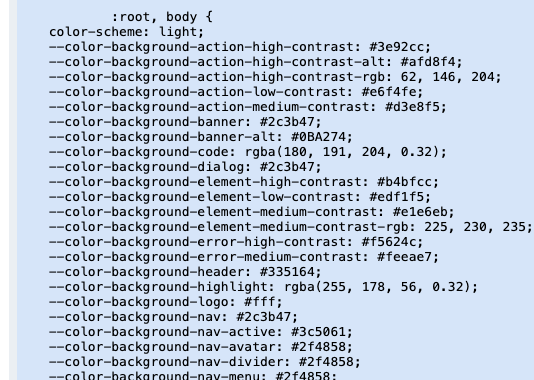
This string can be included in a style element to apply the themed colors, which can be referenced in CSS in the embed as color: var(--color-text-high-contrast);
linkapp.context.lightDarkMode
A string indicating which mode the app is currently in (which may differ from the platform-wide mode). Will be either "light" or "dark".
linkapp.context.link
link object describing properties of the link the plugin action was invoked from, e.g. for insertText or replaceText actions. Will be undefined if the plugin action was not invoked from a context where the selection is in a link.
linkapp.context.noteUUID
The String UUID of the note the plugin action was invoked from. This will include the note UUID that a task is in when invoking an action (e.g. insertText or replaceText) in the tasks view, or other editable task lists.
linkapp.context.pluginUUID
The String UUID of the plugin itself - this is the note UUID of the plugin note.
linkapp.context.refreshNotesList
Attempts to ensure the notes list is up to date. Returning true indicates the notes list is up to date to within approximately one minute, while a false return value indicates that the notes list could not be updated. Refreshing the notes list ensures metadata about notes is up to date - it does not indicate that content in updated notes has been retrieved and updated in the client's datastore.
linkapp.context.refreshSettings
app.settings is updated on a lower tier of sync urgency than most data, to ensure fresh settings are available (e.g. from other devices/clients that may be modifying the plugin's settings), refreshSettings can be used. Note this is likely to make a web request that can potentially take some time.
linkapp.context.renderEmbed
Only present when in an embed context (e.g. in onEmbedCall or renderEmbed action functions), re-renders the embed. Note that the current embed args are used - this function does not take any arguments.
linkapp.context.renderEmbedTarget
In renderEmbed and onEmbedCall action functions, will be set to a string representing where the embed is being rendered. One of:
"note" embed rendering inline in a note (regardless of where note is being displayed)
"notesDashboard" embed rendering in the notes section with no notes open (e.g. on https://www.amplenote.com/notes)
"prompt" embed rendering in prompt call (i.e. app.prompt(...))
"publicNote" embed rendering inline in a public note
"peekViewer" embed rendering in the Peek Viewer sidebar
"section" embed rendering dedicated plugin section
linkapp.context.replaceSelection
Replaces the selection with markdown content. This function will not be present for plugin actions that are not invoked with a user selection/cursor placed in a note - i.e. it is only defined for insertText and replaceText plugin actions. Note that the user can navigate away from a note while a plugin action is executing, in which case, calling this function is not guaranteed to do anything.
Arguments
String of markdown content to replace the selection with
Returns
boolean indicating if the given markdown content replaced the selection. Returns false if the selection has been completely removed from the note, or if the markdown content can't be inserted at the current location (e.g. a table in a task).
Throws
If the context in which the selection existed is no longer available, e.g. the note is completely closed
linkapp.context.selectionContent
When invoked from an editor context, the markdown representation of the content that is currently selected.
linkapp.context.setEmbedHTML
Only defined in renderEmbed action functions, call with an HTML string to immediately render it in the embed - this allows for an initial loading screen to be placed in the embed while renderEmbed performs some longer work to produce the final embed content.
linkapp.context.setScheduledTasks
Only available in suggestScheduledTasks - call to set initial suggestions before returning from the action. Useful if the calculation of suggested tasks is slow and there are initial / progressive suggestions that can be presented to the user while the final suggestions are being determined.
linkapp.context.setStatus
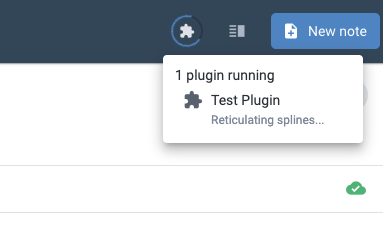
Call with a string argument to set a status while the plugin is executing, which will be displayed to the user when listing running plugins.
linkapp.context.setTaskTargetNotes
Only available in suggestTaskTargetNotes - call to set some results immediately, before returning from the action with the final suggestions.
linkapp.context.subscriptionLevel
A String describing the current subscription level of the user, one of: "personal", "pro", "unlimited", or "founder".
linkapp.context.taskUUID
If the plugin action was invoked from a position in a task, this will be the String UUID of the task in question.
linkapp.context.updateEmbedArgs
When invoked from an embed context (e.g. in an onEmbedCall or renderEmbed action function), can be used to update the arguments passed to renderEmbed - note that this does not trigger a new call to renderEmbed - that can be done by calling app.context.renderEmbed immediately after calling updateEmbedArgs. In public notes, updates to embed arguments will not be persisted, only applying until the page is refreshed.
linkapp.context.updateImage
If the plugin action was invoked on an image (i.e. imageOption actions), can be called to update image properties.
linkapp.context.updateLink
If the plugin action was invoked in a link, can be called to update link properties.
linkapp.context.url
A URL representing the current location in the app. Can be passed to app.navigate to return to the same location.
linkapp.createNote
Create a new note, optionally specifying a name and/or tags to apply.
Arguments
name - optional String name to give the new note
tags - optional Array of String tag names to apply to the new note
options - optional object with optional keys:
archive - boolean indicating whether the note should be created archived, defaults to false
Throws
If any of the provided arguments are not valid
Returns
uuid of the newly created note. This is typically a local-prefixed UUID that may change once persisted to the remote servers, but can continue to be used on the same client to identify the note. Calling app.findNote with this uuid will return a noteHandle with a non-local-prefixed UUID if the note has since completed persistence.
linkapp.deleteNote
Delete a note. Users can restore deleted notes for 30 days after they are first deleted.
Arguments
noteHandle describing the note to delete
Returns
Boolean indicating whether the note described by the noteHandle exists such that it can be deleted.
linkapp.evaluateExpression
Evaluates a string expression, using the same logic used to evaluate in-editor {expressions}.
Arguments
string the expression to evaluate
Returns
string or number result of the expression, or null if the expression is not valid
linkapp.filterNotes
Find noteHandles for all notes matching a set of filter criteria.
Arguments
(optional) object describing filter parameters, containing any of the following properties:
group - filter group to apply. This corresponds to the group= query string parameter when viewing https://www.amplenote.com/notes and filtering on a specific group or set of groups. Multiple groups can be specified with a , separator.
query - String fuzzy search term to filter matching notes on. Note that this is not full-text search, and matches the behavior of note suggestion UI that matches on note names.
tag - tag filter to apply. This corresponds to the tag= query string parameter when viewing https://www.amplenote.com/notes and filtering on a specific tag or set of tags. Multiple tags can be specified with a , separator - matching notes must have all specified tags. A tag prefixed with ^ will only match notes that do not have the tag.
Examples
{ tag: "daily-jots" }
{ tag: "daily-jots,todo" } - matches notes that have the daily-jots tag and the todo tag.
{ tag: "daily-jots,^todo/next" } - matches notes that have the daily-jots tag and do not have the todo/next tag.
taskDomainUUID the string UUID of a task domain, to filter the results to only notes that fall in the specified task domain
(optional) string sort order to apply to the returned notes. If not supplied, the returned notes are in no particular order. Valid values are:
"changed" - return notes with the most recent content or metadata changes - made by the current user only - first
"created" - return the most recently created notes first
"opened" - return the most recently opened notes first
"relevance" - only allowed when a query string has been included in the filter parameters argument
"title" - return notes sorted by title, alphabetically
"updated"- return the notes with the most recent content or metadata changes - made by any user with access - first
Throws
If the given taskDomainUUID does not correspond to an extant task domain.
Returns
An array of noteHandles for all notes that match the filter parameters.
linkapp.findNote
Returns a noteHandle identifying a note, with additional note metadata attributes populated, if the note is extant and not marked as deleted. In addition to verifying whether a note exists, this can be used to fill in some additional details for a note, e.g. if the plugin only has a noteUUID it can call this to get the name and tags applied to the note.
Arguments
noteHandle identifying the note to find, considering the following attributes:
uuid the UUID identifying a specific note - if provided, the other attributes will be ignored.
name String name of the note to find. If uuid is not provided, this must be supplied.
tags optional Array of tag filter Strings that the note must match, in addition to the name. Each array entry can be the name of a tag e.g. [ "some-tag" ] or can include a negation operator to only match notes that don't have that tag, e.g. [ "^not-this-tag" ]
Returns
noteHandle of the note, or null if the note does not exist or has been marked as deleted
linkapp.getAttachmentURL
Given the UUID of an attachment, returns a temporary URL that can be used to access the attachment. The client must be online for this function to succeed.
Arguments
String attachment UUID identifying the attachment
Returns
String temporary URL that can be used to access the attachment content
linkExample: reading attachment content
Note that the web environment plugin code executes in requires a server to respond with CORS headers, and the attachments server does not add these headers for the plugin code origin. The attachments server address is allowed through a plugin CORS proxy that adds the appropriate headers, so it can be used to fetch attachment data.
This is also how a plugin fetches the content of its own attachment (see Large plugins: keeping the payload out of the code block). Because the client must be online for this call to succeed, a plugin whose payload lives in an attachment can't render that payload while offline — a plugin with a fully self-contained code block can.
linkapp.getAttachmentURL
Given the UUID of an attachment, returns a temporary URL that can be used to access the attachment. The client must be online for this function to succeed.
Arguments
String attachment UUID identifying the attachment
Returns
String temporary URL that can be used to access the attachment content
linkExample: reading attachment content
Note that the web environment plugin code executes in requires a server to respond with CORS headers, and the attachments server does not add these headers for the plugin code origin. The attachments server address is allowed through a plugin CORS proxy that adds the appropriate headers, so it can be used to fetch attachment data.
This is also how a plugin fetches the content of its own attachment (see Large plugins: keeping the payload out of the code block). Because the client must be online for this call to succeed, a plugin whose payload lives in an attachment can't render that payload while offline — a plugin with a fully self-contained code block can.
linkapp.getCompletedTasks
Gets tasks completed in the given time range, which includes standard completed, dismissed, and crossed-out tasks.
Arguments
integer unix timestamp, only tasks completed on or after this time will be returned
integer unix timestamp, only tasks completed before this time (non-inclusive) will be returned
(optional) options objectwith the following optional keys:
taskDomainUUID a string uuid of a task domain; if given, only completed tasks in this task domain will be returned
Throws
If an options.taskDomainUUID is given that does not correspond to an extant task domain
Returns
Array of task objects describing the completed tasks
linkapp.getExternalCalendarEvents
Get events from the user's connected external calendars (e.g. Google Calendar, Apple Calendar, etc). Note this does not query external calendars directly, but rather cached calendar events for the next ~30 days, which are freshened every 5-10 minutes.
Arguments
(optional) options object, with the following allowed keys:
days an integer indicating how many days (from the start of today) of external calendar events to return, in the range of 1-30 (inclusive)
taskDomainUUID a string identifying the task domain that should be used to filter the results, such that only events that would show on the Amplenote calendar in that task domain are included
Throws
If an invalid options.days value is given
If an options.taskDomainUUID is given that does not correspond to an extant task domain
Returns
Array of externalCalendarEvent objects describing the external calendar events
linkapp.getMoodRatings
Arguments
integer unix timestamp, only ratings left on or after this time will be included in the results
(optional) integer unix timestamp, only ratings left before this time will be included in the results
Returns
Array of moodRating objects
linkapp.getNoteAttachments
Returns a list of attachments in the given note. Only attachments that are currently referenced in the note will be returned - if an attachment is uploaded to a note then deleted from the note or moved to a different note, it will not be included in the resulting list.
Arguments
noteHandle identifying the note to list attachments for
Returns
Array of attachment objects, or null if the note handle did not identify an existing note
A plugin can also pass its own note as the target — app.getNoteAttachments(app.context.pluginUUID) lists attachments on the plugin's own note. This is the basis for shipping a large payload (an embed document, a compiled bundle) as an attachment instead of inlining it in the plugin's code block; see Large plugins: keeping the payload out of the code block on the Plugin creation page. The caveat above still applies: only attachments still referenced in the note body are returned, so removing the visible reference (even if the file itself remains uploaded) will hide it from this call.
linkapp.getNoteAttachments
Returns a list of attachments in the given note. Only attachments that are currently referenced in the note will be returned - if an attachment is uploaded to a note then deleted from the note or moved to a different note, it will not be included in the resulting list.
Arguments
noteHandle identifying the note to list attachments for
Returns
Array of attachment objects, or null if the note handle did not identify an existing note
A plugin can also pass its own note as the target — app.getNoteAttachments(app.context.pluginUUID) lists attachments on the plugin's own note. This is the basis for shipping a large payload (an embed document, a compiled bundle) as an attachment instead of inlining it in the plugin's code block; see Large plugins: keeping the payload out of the code block on the Plugin creation page. The caveat above still applies: only attachments still referenced in the note body are returned, so removing the visible reference (even if the file itself remains uploaded) will hide it from this call.
linkapp.getNoteBacklinkContents
Get the content of backlinks - including surrounding context, as would be shown in the backlinks section of a note - from a specific source note to a specific target note.
Arguments
target noteHandle identifying the note being linked to
source noteHandle identifying the note that contains the link(s) to the target note
Returns
Array of markdown strings, one for each link in the source note that references the target note, including relevant note content context
linkapp.getNoteBacklinks
Returns the list of notes that link to the specified note.
Arguments
noteHandle identifying the note
Returns
Array of noteHandles identifying the notes that have links to the specified note
linkapp.getNoteContent
Get the content of a note, as markdown.
Arguments
noteHandle identifying the note
Returns
The content of the note, as markdown.
linkapp.getNoteImages
Get all the inline images in a note (does not include images in Rich Footnotes).
Arguments
noteHandle identifying the note
Returns
Array of image objects
linkapp.getNoteOpenCounts
Returns the number of times a note has been opened over recent rollup periods (week, month, and quarter). Similar to a "view count" or even "viewcount" if you're Ctrl-Fing this doc.
Arguments
noteHandle identifying the note to get open counts for
Returns
An Object with the following numeric properties, or null if the given remove UUID is invalid:
week : Number of times the note was opened in the last week
month : Number of times the note was opened in the last month
quarter : Number of times the note was opened in the last quarter
linkapp.getNotePublicURL
Get a public URL for the note, if it has been published. Note that this call requires internet connectivity.
Arguments
noteHandle identifying the note
Returns
String URL for the published note, or null if the note is not published
Throws
If a request to the server fails, e.g. if the client is offline
linkapp.getNoteSections
Gets a list of the sections in a note. Sections are areas of the note delimited by either a heading or a horizontal rule. Sections are identified by the heading (if any) that opens the section, and when relevant, an index to disambiguate between multiple sections with matching headings.
Arguments
noteHandle identifying the note
Returns
An Array of the sections the note is comprised of
linkapp.getNoteSettings
Gets settings specific to a note that are not included in noteHandle metadata, generally related to note styling and secondary displays.
Arguments
noteHandle identifying the note
Returns
null, if the noteHandle does not resolve to a note; otherwise, an Object with the following possible keys:
appearance a String or null (indicating the note uses the account-wide default for appearance) either one of full-width or standard corresponding to the "note style" options
backgroundColor a String representing the hex color used for the background of the note
bannerImageURL the String URL of an image used as a banner for the note
maxOpenTasks an Integer indicating the maximum number of open tasks the user wishes to have in the note
linkapp.getNoteTasks
Returns the tasks that are present in the specified note.
Arguments
noteHandle identifying the note to get tasks from. If the note handle identifies a note that does not yet exist, the note will not be created.
options object, with the following optional properties:
includeDone - boolean indicating whether completed and dismissed tasks in the note should be returned in addition to the un-done tasks. Defaults to false.
Returns
Array of task objects
linkapp.getNoteURL
Returns a full URL for the specified note. This URL can be used to link to the note (and will be detected as a note link in Amplenote editors/views), and can be used to open the note via app.navigate.
Arguments
noteHandleidentifying the note to get the URL of. If the note handle is for a note that does not yet exist, the note will be created.
Returns
String URL of the note.
linkapp.getPeople
List the people known to the current user.
Arguments
none
Returns
Array of person objects
linkapp.getPreviousTaskInstances
Get previous instances of a repeating task, newest first. The given task itself is not included.
Arguments
UUID String identifying the task
Returns
Array of task objects representing previous instances of repeating tasks, newest first
Note that this function can return a large amount of data, so it's highly recommended to use an async iterator to reduce the potential for performance impact.
linkapp.getShortcuts
Lists the shortcuts in one of the shortcut areas, including any default shortcuts that are present without the user having customized the area (e.g. the "Past Deadline" and "Due Today" task shortcuts).
Arguments
area the String name of the area of the app to list shortcuts from. Must be one of "calendar", "jots", "notes", or "tasks".
Returns
An Array of shortcut objects, each containing whichever of the following properties the shortcut defines: group, query, references, remoteUUID, tag, and name. An empty Array is returned when the area has no shortcuts.
Throws an Error if area isn't one of the valid areas.
linkapp.getTags
Get the tags in the user's account.
Arguments
none
Returns
An Array of tag objects
linkapp.getTask
Get the details of a single task.
Arguments
UUID String identifying the task
Returns
task object, or null if no task with the given UUID exists
linkapp.getTaskDomains
Get the list of configured Task Domains for the user.
Arguments
None
Returns
Array of taskDomain objects
linkapp.getTaskDomainTasks
Gets the list of tasks that belong to the given task domain. Note that this includes tasks that are not scheduled (on the calendar).
Arguments
String task domain UUID
Returns
Array of task objects describing the tasks in the task domain
Note that this function can return a large amount of data, so it's highly recommended to use an async iterator to reduce the potential for performance impact.
linkapp.htmlFromContent
Converts markdown-formatted content to an HTML string, rendered with the same markup the Amplenote editor uses to display note content. Useful for rendering note content (e.g. as returned by app.getNoteContent) in an embed.
Arguments
content: String of markdown-formatted content to convert to HTML
Returns
A String of HTML rendering the given content, wrapped in a readonly ample-editor container element.
Throws
If content is not a String
linkapp.insertNoteContent
Inserts content into a note.
Arguments
noteHandle identifying the note to insert the text into
content: String of markdown-formatted content to insert
(optional) object of additional options, with the following properties:
atEnd boolean indicating that content should be inserted at the end of the note. Defaults to false.
Returns
Nothing
Throws
If markdown content is over 100k characters
If the target note is readonly
linkapp.insertTask
Inserts a new task at the beginning of a note. See also: note.insertTask.
Arguments
noteHandle identifying the note to insert the task into
task object, with the following attributes (all are optional):
content: String of markdown-formatted content to use in the task
hideUntil: Number a unix timestamp (seconds) to use for the "Hide until" time
startAt: Number a unix timestamp (seconds) to use for the "Start at" time
Returns
The UUID of the newly created task
Throws
If the provided content is not valid in a task (e.g. - a bullet list item)
If note is readonly/locked
link
linkapp.navigate
Opens the app to the location corresponding tot he given Amplenote app URL. Amplenote app URLs start with https://www.amplenote.com/notes. Examples:
Jots area: "https://www.amplenote.com/notes/jots"
Notes area: "https://www.amplenote.com/notes"
Notes list filtered to a tag: "https://www.amplenote.com/notes?tag=some-tag"
Jots area on a specific tag: https://www.amplenote.com/notes/jots?tag=some-tag
A specific note: "https://www.amplenote.com/notes/NOTE_UUID" (replacing NOTE_UUID with a specific note's UUID).
A specific section of a note: "https://www.amplenote.com/notes/NOTE_UUID#Section_name" (replacing NOTE_UUID with a specific note's UUID). The fragment should indicate the anchor name of the heading (per app.getNoteSections handling, spaces are replaced with underscores, along with some other URL-safety transformations).
A specific task in a specific note: "https://www.amplenote.com/notes/NOTE_UUID?highlightTaskUUID=TASK_UUID" (replacing NOTE_UUID and TASK_UUID with a specific note UUID and task UUID, respectively).
A specific task, on a dedicated page/screen for that task: "https://www.amplenote.com/notes/tasks/TASK_UUID" (replacing TASK_UUID with a specific task's UUID)
Arguments
url an Amplenote URL string
Returns
true if the given url was a valid Amplenote URL and was navigated to, false otherwise
linkapp.notes
The notes object provides an alternative - and simpler - way to interact with specific notes. Depending on the purpose, it may be preferable than the noteHandle-based functions available on the main app interface. Functions on the notes object return Note interface objects. As with noteHandles, a note interface object may represent a note that does not (yet) exist. Calling any note interface function that requires an extant note will create the note first, if it doesn't already exist.
linkapp.notes.create
Create a new note. This is an alternative interface to app.createNote.
Arguments
name the String to use as the new note's name
tags an Array of String tag names to apply to the new note
Returns
Note interface object for the newly created note
linkapp.notes.dailyJot
Gets a note interface for the daily jot note on the day corresponding to the given timestamp.
Arguments
timestamp unix timestamp Number (seconds) indicating any time on the day the daily jot note should be for
Returns
Note interface object for the daily jot note
linkapp.notes.filter
Find noteHandles for all notes matching a set of filter criteria. This is an alternative interface to app.filterNotes.
Arguments
(optional) object describing filter parameters, containing any of the following properties:
group - filter group to apply. This corresponds to the group= query string parameter when viewing https://www.amplenote.com/notes and filtering on a specific group or set of groups. Multiple groups can be specified with a , separator.
Examples
{ group: "archived" }
{ group: "taskList,archived" }
tag - tag filter to apply. This corresponds to the tag= query string parameter when viewing https://www.amplenote.com/notes and filtering on a specific tag or set of tags. Multiple tags can be specified with a , separator - matching notes must have all specified tags. A tag prefixed with ^ will only match notes that do not have the tag.
Examples
{ tag: "daily-jots" }
{ tag: "daily-jots,todo" } - matches notes that have the daily-jots tag and the todo tag.
{ tag: "daily-jots,^todo/next" } - matches notes that have the daily-jots tag and do not have the todo/next tag.
Returns
An array of noteHandles for all notes that match the filter parameters.
linkapp.notes.find
Builds an object that allows you to more concisely call app.* functions for a specific note.
Arguments
Either one of
uuid the String UUID identifying the note
noteHandle identifying the note
Returns
Note interface object for the note, or null if the note does not exist or has been marked as deleted
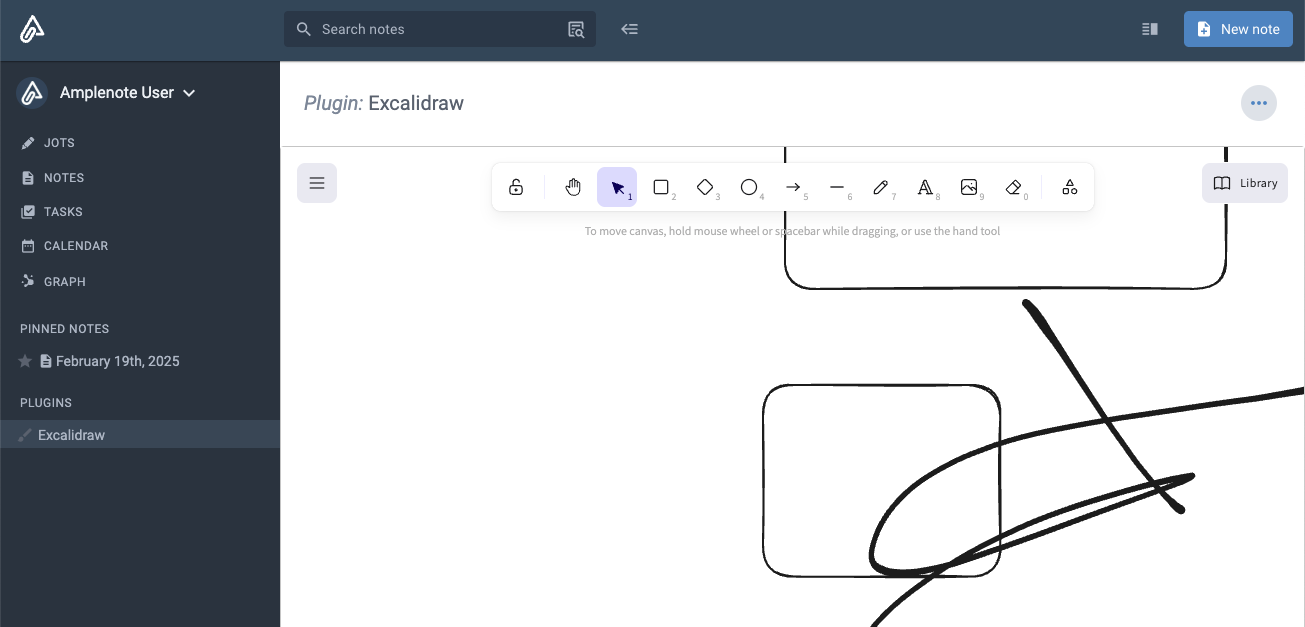
linkapp.openEmbed
Adds a section to the sidebar (or drawer menu on the mobile app), allowing the user to open a full screen embed. The section is only added to the local client instance, and is not synchronized across clients. Updates to the embed arguments (e.g. by calling app.context.updateEmbedArgs) will be persisted, until the user manually removes the plugin section.
Arguments:
Anything. Will be passed to renderEmbed, after the app argument.
Returns
nothing
linkapp.openSidebarEmbed
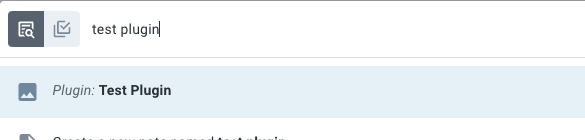
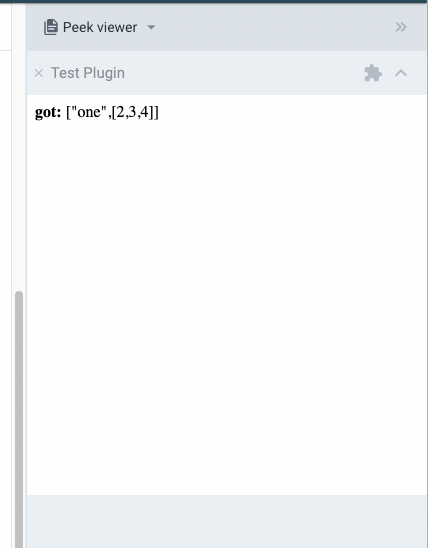
Opens an embed for the plugin (see renderEmbed) in the Peek Viewer, if it is available for the user. If the plugin has already opened a sidebar embed, the existing sidebar embed will be re-rendered by calling renderEmbed again with the latest passed args.
Arguments
Number or object - if a Number, the aspect ratio to use for embed. Embeds are fully isolated from the hosting application, so they can't be sized dynamically based on the content of the embed (content in the embed is not accessible to the hosting application). Instead, an aspect ratio is supplied here that will be maintained in the embed.
If an object, in the shape of:
aspectRatio - Number aspect ratio, as described above
id string identifying the specific sidebar embed. Multiple sidebar embeds can be opened by the same plugin by supplying unique id values for each one
...args arguments that will be passed to the plugin's renderEmbed action
Returns
Boolean indicating whether the embed could be opened. Will return false in the mobile app, where there is no Peek Viewer.
Invoking from quick open (via appOption):
Rendered in Peek Viewer, after selecting plugin in quick open:
See renderEmbed for examples of communicating between an embed and the plugin that rendered it.
linkapp.prompt
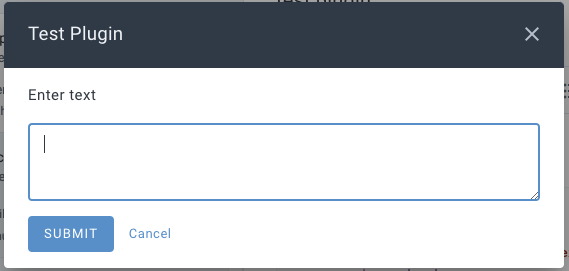
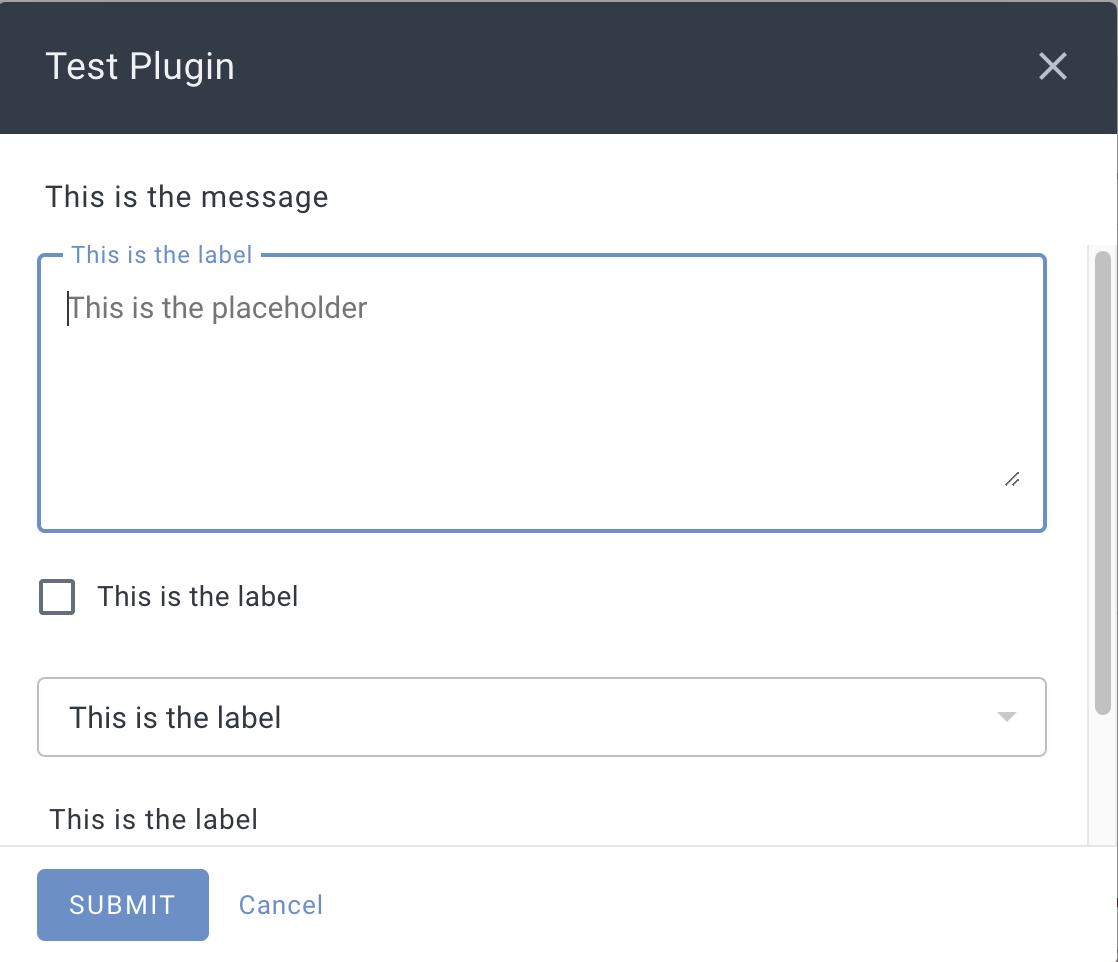
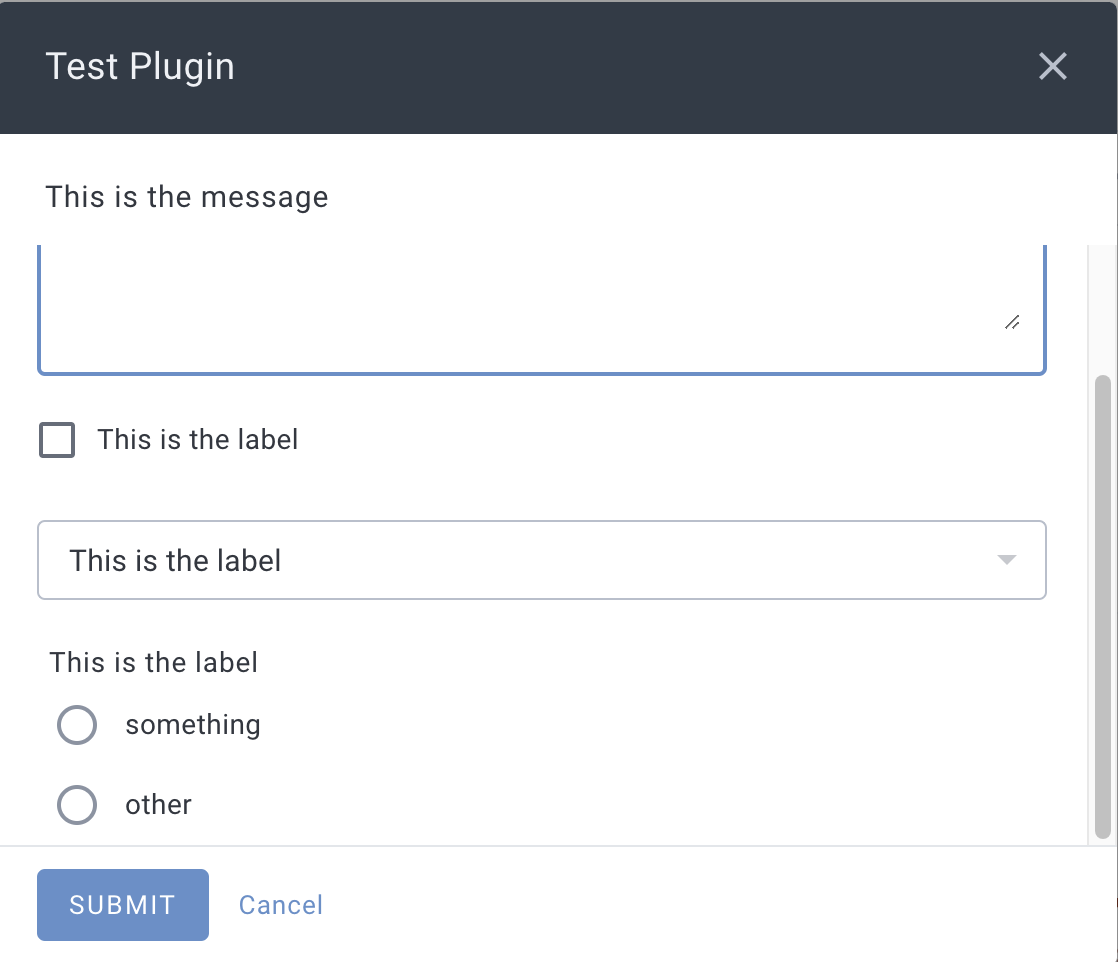
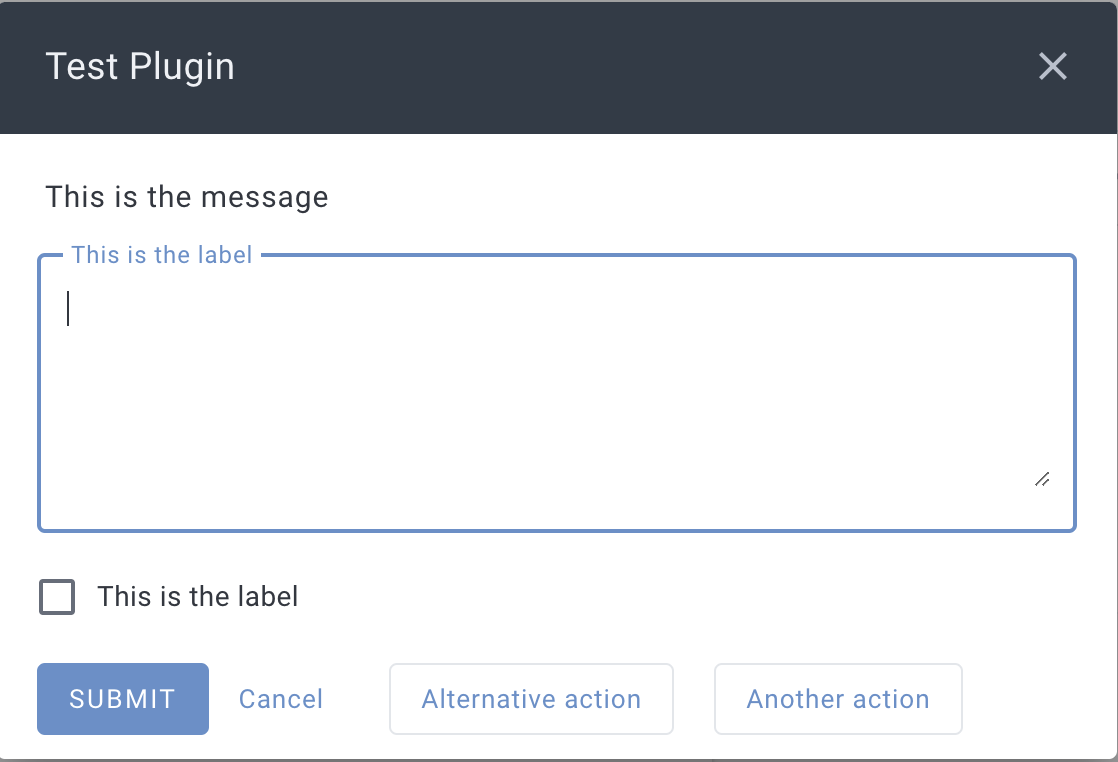
Show the user a message and input fields - defaulting to a single text input - receiving the user-selected/user-entered value(s). Similar to app.alert, except that this allows options to be presented in a dialog, and does not allow multiple buttons at the bottom of the window, like app.alert does.
Arguments
message String to show the user. New lines can be inserted with \n. Unicode characters are supported in output. Markdown isn't supported...yet.
(optional) object describing additional options, containing any of the following properties:
inputs an optional Array of input objects describing the input fields to show. If not provided, a single text input field will be shown (equivalent to inputs: [ { type: "text" } ]).
input object, with the following properties:
limit a Number to use as the maximum number of tags that can be selected in a type: "tags" input. If omitted, defaults to 1
options Array of options to use in a type: "select" drop-down input or type: "radio" input each option an object with the following properties:
label the String to show as a label on the input field
value the value corresponding to the option. Will be returned as the result (verbatim) when the user selects the option.
image a String URL of an image to show with the option. Only used in type: "radio" inputs.
placeholder a String to use as a placeholder value for a type: "text" input
type String one of the following values:
"checkbox" a check box field
"date" a calendar date selection field
"embed" a plugin embed rendered by the plugin's renderEmbed function. To update the selected value, call app.context.updateEmbedArgs - the final value will be returned.
"note" a field to select a single note from the user's notes list
"radio" a set of radio buttons to select one option from. When specified, the options property should also be provided.
"secureText" a short text field that masks the displayed characters like a password field.
"select" a drop-down select field. When specified, the options property should also be provided.
"string" a single line text input field
"tags" an auto-complete field for the user's tags, in which a single tag can be selected by default, or more can be selected by providing a limit value.
"text" a multi-line text area field
value the initial value for the input. If the user does not change the input, submitting the prompt will use this value.
The value must match the value field in one of the options for type: "radio" and type: "select" inputs, or it will be ignored.
This value will be the argument to the renderEmbed function for a type: "embed" input
actions optional Array of action objects that will be added as buttons on the dialog. Each action object can have the following properties:
icon optional String name of a Material Icon to show on the button
label the String text to show on the button
value optional value (of any basic JS type) that will be returned when the action is triggered, instead of the index in the actions array
primaryAction (optional) an object that, if given, will adjust the appearance of the primary action button, which can include the following properties:
icon optional String name of a Material Icon to show on the button
label the String text to show on the button
Returns
null if the user selected "Cancel", or otherwise closed the dialog without pressing "Submit"
If no inputs or actions options are provided
The String text the user entered
If a single inputs option and no actions are provided, one of:
The String text the user entered for a type: "text" or type: "string" input
The String tag text the user selected for a type: "tags" input. If multiple tags are selected, they will be joined with a , to produce a single string.
The Integer value corresponding to the unix timestamp (seconds) that the user selected for a type: "date" input, or null if no day was selected.
The value corresponding to the option.value the user selected in a type: "radio" input
The Bool value corresponding to the user's selection for a type: "checkbox" input
The noteHandle of the selected note for a type: "note" input
The value corresponding to the value field of the selected type: "select" option
If multiple inputs are provided, an Array of values corresponding to value selected for each input (in the same order they were specified), followed by a single entry corresponding to the actions entry that the user selected, or -1 if the user pressed the default "Submit" button.
linkapp.publishNote
Arguments
noteHandle describing the note to publish. Must be a remotely-persisted note.
Returns
The String URL of the published note, or null if the note could not be published. Note publishing requires an Unlimited or Founder subscription, and an active connection to the internet.
Notes
If the note is already published by the current user, an existing URL will be returned instead of creating a new URL
linkapp.recordMoodRating
Records a mood rating.
Arguments
integer rating in the range of -2 to +2 (inclusive)
Returns
The String UUID of the recorded mood rating
Throws
If the given rating is not valid (i.e. out of range)
linkapp.removeNoteTag
Removes a tag from a note.
Arguments
noteHandle identifying the note to add the tag to
String text of the tag to remove
Returns
boolean indicating whether the tag was removed. In some cases, shared tags cannot be removed from notes - and this will return false. Note that this will return true even if the note did not have the tag - only a failure to remove a tag will result in false.
Throws
If the given tag argument is not a string
linkapp.removeShortcut
Removes a shortcut from one of the shortcut areas. The shortcut to remove is matched on its filter properties (group, query, references, remoteUUID, and tag - the name is ignored when matching), so the object passed here should contain the same filter values as the shortcut to remove, e.g. as returned by app.getShortcuts.
Arguments
area the String name of the area of the app to remove the shortcut from. Must be one of "calendar", "jots", "notes", or "tasks".
shortcut an object describing the shortcut to remove, containing any of the following String properties: group, query, references, remoteUUID, tag.
Returns
true, whether or not a matching shortcut was present (removing a shortcut that doesn't exist is a no-op).
Throws an Error if area isn't one of the valid areas, or if shortcut isn't an object.
linkapp.replaceNoteContent
Replace the entire content of a note with new content, or replace the content of a single section of the note (see app.getNoteSectionsfor discussion of sections).
Arguments
noteHandle describing the note to replace content in
Markdown content String of new content
(optional) object of additional options, supporting the following properties
section object describing the section of the note to replace content in. For sections that start with a heading, the heading will not be replaced, only the content of the section.
includeCompletedTasks boolean indicating whether completed tasks should be replaced in addition to the main note content
includeHiddenTasks boolean indicating whether hidden tasks should be replaced in addition to the main note content
Returns
bool indicating whether the replacement was performed. Note that the only failure state for a replacement is when a section is specified and that section is not found in the note.
Throws
If markdown content is over 100k characters
If the target note is readonly
With a section:
linkapp.saveFile
Save a file.
Arguments
The Blob/ File object describing the content of the file
String filename to use for the file
Returns
A promise that resolves when the request to save the file has been sent. Note that the user may see a prompt to accept/name/save the file, in which case this will resolve as soon as the request has been displayed to the user - it does not wait for the user to actually save the file.
linkapp.searchNotes
Search note content. This matches in-app "full search" functionality.
Arguments
query - string term to search for in note content
Returns
An array of noteHandles for all notes with content matching the query, ordered with best matches first
link
linkapp.setNoteName
Sets a new name for the given note.
Arguments
noteHandle describing the note to set the name of
String new name for the note
Returns
Boolean indicating whether the name could be changed. Generally, the only failure case is if the note handle doesn't identify an extant note.
Throws
If the name argument is not a string
linkapp.setNoteSetting
Set the value of a note setting, as returned by app.getNoteSettings.
Arguments
noteHandle describing an extant note to set a setting for
key String setting name, which currently allows the following settings:
"appearance" a String or null (indicating the note uses the account-wide default for appearance) either one of "full-width" or "standard" corresponding to the "note style" options
"backgroundColor", with the value as a String representing the hex color used for the background of the note
"maxOpenTasks", with the value as an Integer indicating the maximum number of open tasks the user wishes to have in the note
value - the value to set for the setting; type varies depending on the setting key
Returns
boolean indicating whether the setting was updated
Throws
If the key or value arguments are not valid
linkapp.setSetting
Update the value of a single setting. The value will be synchronized to all of the user's devices. Note that the updated value is not guaranteed to be updated in app.settings before the next invocation of a plugin function (check or run).
Arguments
String setting name to update, or add
String new value for the setting. Any non-string values (with the exception of null) will be converted to strings.
Returns
Nothing
linkapp.settings
An object containing the user-configured settings for the plugin. All values will be strings.
This will insert the string the user has entered for "Some setting", assuming the plugin metadata table includes:
setting | Some setting |
linkapp.unpublishNote
Arguments
noteHandle describing the note to publish. Must be a remotely-persisted note.
Returns
boolean indicating whether the note is (now) not published
Throws
If network connectivity is not available
linkapp.updateMoodRating
Update a single mood rating's properties.
Arguments
moodRatingUUID the string uuid identifying the mood rating to update
updates object describing the attributes of the moodRating to update. Only the note and rating properties are allowed.
Returns
Nothing
Throws
If moodRatingUUID is not provided. Note that this does not throw if moodRatingUUID doesn't identify an extant mood rating.
If updates is not an object or the properties of updates are not of the expected types/ranges
If updates contains additional, unhandled/unexpected keys
linkapp.updateNoteImage
Update an image in a specific note.
Arguments
noteHandle identifying the note to update an image in
image identifying the image to update - only the index and src keys are necessary
object describing the updates to the image, which can contain the properties described in by image, with the exception of the index property
Returns
boolean indicating whether the image could be updated
Throws
If the given markdown is not valid in an image caption
linkapp.updateTask
Update the properties or content of a single task.
Arguments
String UUID identifying the task
object containing (optional) updates to apply to the task. All properties listed for a task are supported, except the uuid
Returns
boolean indicating whether the task could be updated. If the given task UUID doesn't correspond to any existing task, will return false
linkapp.writeClipboardData
Write to the clipboard. The plugin code execution environment can prevent use of clipboard APIs in some browsers, so this app function is provided for full cross-platform support.
Arguments
String data to copy to the clipboard. For non-string mime types, should be base64 encoded data.
Optional String mime type of data, defaults to "text/plain". The following mime types are allowed:
"text/plain" - data argument should be the text to copy to the clipboard
"image/png" - data argument should be base64 encoded image data
Returns
Nothing
Throws
If an unsupported mime type argument is supplied
If base64 data is not validly base64 encoded