linkPlugin API Reference Documentation: Actions
Plugin actions are the interaction points that define how a plugin's code gets called. Actions functions that return values can either return the value directly, or return a Promise that resolves to the value when ready. All action functions are passed an App Interface object as the first argument.
Each action can optionally define a check function that will be called before displaying the plugin to the user in the context of the specific action. The check function receives the same arguments as the plugin action (run) function, and returns a boolean indicating whether the plugin should be displayed or not. Returning a promise that resolves to the boolean is supported, and will show a loading indicator to the user in most cases. Note, however, that the user may no longer be viewing the plugin action context when an asynchronous check completed (e.g. if the user dismisses the menu the plugin action would be listed in).
linkappOption
Adds app-wide options that can be invoked from the "jump to note" (web) or quick search (mobile app) dialogs.
Arguments
app App Interface
Returns
Nothing

linkdailyJotOption
Adds an option to the suggestions shown below today's daily jot note in jots mode, with a button to run the plugin action. Implementing a check function is advisable to conditionally show the option, otherwise it will always be shown to the user.
Arguments
app App Interface
noteHandle noteHandle of the daily jot note that the option is being shown in
Returns
Nothing
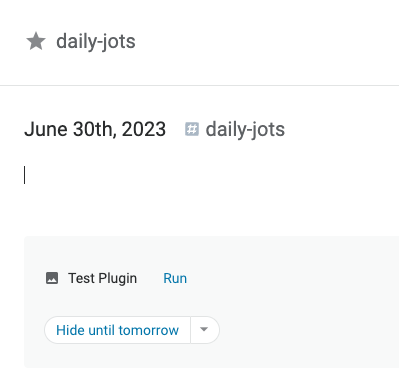
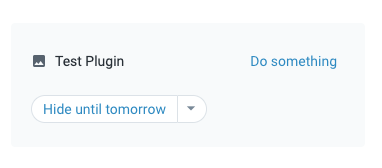
To customize the text shown on the "Run" button, return a non-empty string from the plugin action's check function:
linkeventOption
Adds an option to the popup menu shown for events (tasks and scheduled bullets) on the calendar.
Arguments
app App Interface
taskUUID String identifier for the task or scheduled bullet the menu is being shown for.
Returns
Nothing
linkimageOption
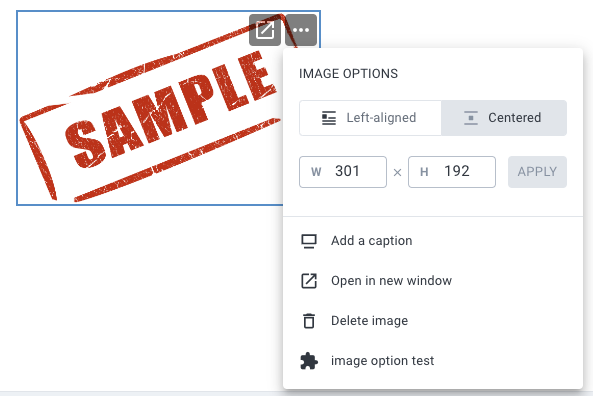
Adds an option to the drop-down menu on each image in a note.
Arguments
app App Interface
image image object describing the selected image
Returns
Nothing
See also
app.context.updateImage to update the properties of the image
linkinsertText
Called to insert text at a specific location in a note (or note title), when using an {expression}.
Arguments
app App Interface
Returns
String new text to insert in the note in place of the {expression}
The auto-complete menu for expression will include any installed plugins:
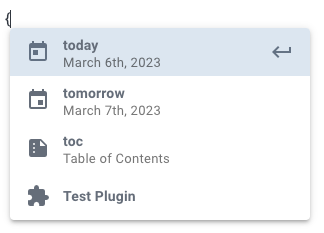
The plugin's insertText action will be called to replace the {Test Plugin} expression, where "Test Plugin" is the configured plugin name.
To use a different keyword than the plugin's name, return a string from the check function:
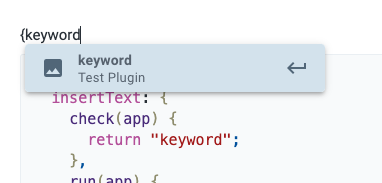
See app.context.replaceSelection for an example of inserting markdown at the selection location instead of plain text (when possible).
linklinkOption
Adds a button to the Rich Footnote popup, shown when the cursor is in a specific link.
Arguments
app App Interface
link link object describing the link the action was triggered from
Returns
Nothing
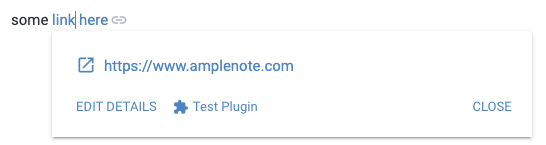
linklinkTarget
A plugin's linkTarget action will be called when a plugin link (plugin://<plugin UUID>) is clicked/pressed, either via the link icon in a note or the link icon/text in a Rich Footnote popup. A plugin's UUID is included in all actions as app.context.pluginUUID.
Arguments
app App Interface
(optional) String query string included in the plugin link URL, not including the leading ?, e.g. "something" for "plugin://<plugin UUID>?something"
Returns
Nothing
The plugin can then be triggered from a link:
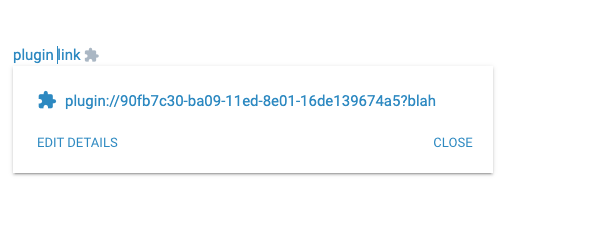
To insert a link, use any app function that can receive markdown:
linknoteOption
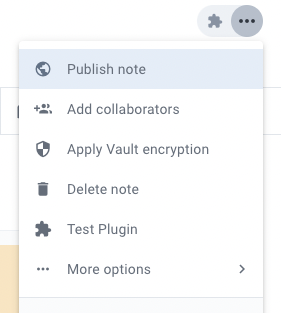
Adds options to the per-note menu, shown when editing a specific note.
Arguments
app App Interface
noteUUID the UUID of the note that the menu option was invoked in
Returns
Nothing
linkonEmbedCall
Called when code running in an embed that was rendered by this plugin (see renderEmbed) calls window.callAmplenotePlugin.
Arguments
app App Interface
...args any arguments passed to window.callAmplenotePlugin - note that these arguments are serialized to JSON then deserialized to Javascript values, so they should be able to round-trip through a JSON serialize/deserialize.
Returns
Any Javascript value that can be serialized as JSON, which will be deserialized before it is resolved as the result of the promise returned by window.callAmplenotePlugin in the embed.
See calling the plugin from the embed for a more detailed example.
linkonNavigate
Called when the user changes locations in the app, e.g. when opening a note, jots, etc. Also called when plugin initially loads (with the current location at that time). Note that the check function - if defined - will not be called for this action.
Arguments
app App Interface
String url being navigated to
Returns
Nothing
linkonNoteCreated
Called when a note has been created on the current client. Note that the identifier associated with the note may be a local-only identifier that is only usable on the same client. It can later be exchanged for a long-term identifier by calling app.findNote, but the identifier will remain usable on the same client.
Arguments
app App Interface
noteHandle describing the newly created note
Returns
Nothing
linkonPluginCall
Called when a plugin calls app.callPlugin with an identifier that matches this plugin.
Arguments
app App Interface
sourcePlugin object identifying the plugin that called app.callPlugin to trigger this invocation, with the following keys:
uuid the string uuid of the plugin note in the user's account
source string or null, the public note token of the public note that the plugin was installed from, e.g. a published plugin's public note token.
...args any remaining arguments passed to app.callPlugin
Returns
Any return value will be returned to the caller of app.callPlugin - must be a serializable value
linkrenderEmbed
Called when an embed assigned to the plugin needs to render HTML. Embeds are HTML documents loaded in an isolated iFrame that does not have access to the outer application, and operates with relaxes CSP rules compared to the outer application. Once rendered, an embed will stay loaded / running until the user navigates away from the note containing the embed or closes the Peek Viewer (for sidebar embeds).
Arguments
app App Interface
...args any additional arguments passed to app.openSidebarEmbed. For embeds inline in note content, you can pass arguments using this syntax.
Returns
String of HTML that will be loaded in the embed
Additional notes
In the returned HTML, a tags that have the class amplenote-link will be setup as links to Amplenote client locations, so the following link would allow a user to click/tap to open jots, in all clients: <a class="amplenote-link" href="https://www.amplenote.com/notes/jots">open jots</a>. Only links to valid Amplenote-client-handled URLs are handled.
linkInserting embeds in notes
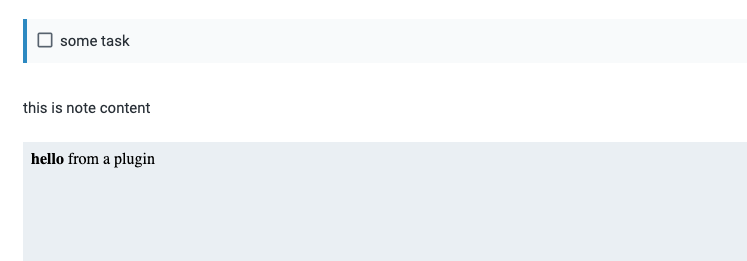
Embeds are supported in markdown as <object> HTML tags with a specific protocol specified in the data attribute. To insert an embed in a specific location in a note, an insertText action can be used:
By default, plugin embeds render in a fixed 1:1 aspect ratio (width == height). An aspect ratio can be supplied in the data-aspect-ratio attribute, as shown in the code above, dictating the desired width/height for the embed.
Alternatively, any app call that can receive markdown can be used to add embeds to note content. Note that embeds aren't valid in all locations (e.g. they can't be inserted in tasks), so the embed object might be placed after a task if it is included in the body of the task, or dropped in cases where there isn't a valid insertion position nearby.
linkInline embeds with parameters
will call embedPlugin like this
linkCalling the plugin from the embed
The code running in the embed can call out to the plugin itself, and the plugin code can return values back to the embed from this call. Within the embed itself, a call can be made to the controlling plugin (the plugin that renderEmbed was called on) by using window.callAmplenotePlugin:
Any arguments will be passed to the plugin's onEmbedCall after the app argument.
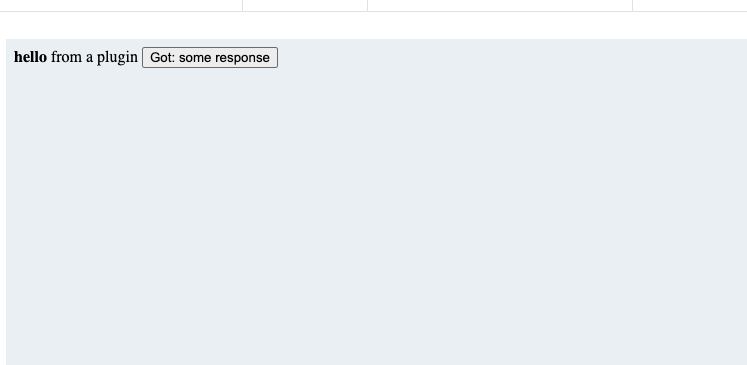
Putting together onEmbedCall and window.callAmplenotePlugin, we can implement a basic plugin that renders an embed with a button. When the button is clicked, the embed calls into the plugin to show the user a prompt, returning the result to the embed:
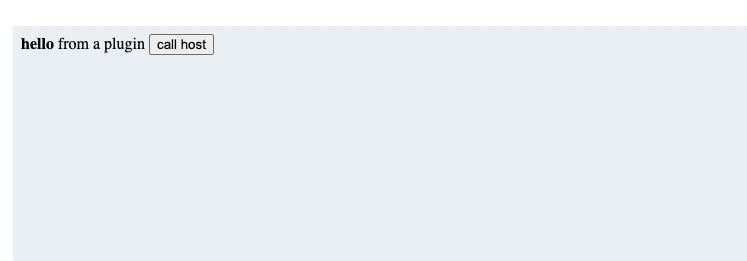
Upon clicking the "call host" button:
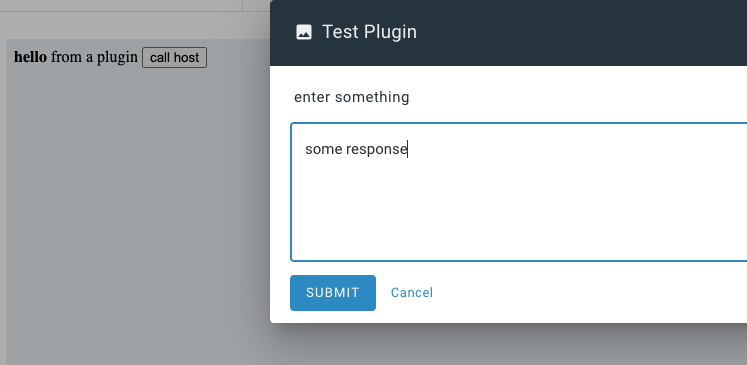
After clicking "submit":
linkreplaceText
Called to replace some highlighted text, invoked via the selection menu.
Arguments
app App Interface
text the String of selected text
Returns
String new text to replace the selected text with
null to cancel the replacement. Note that the replacement will also be cancelled if the user changes the selection before this action returns a value.
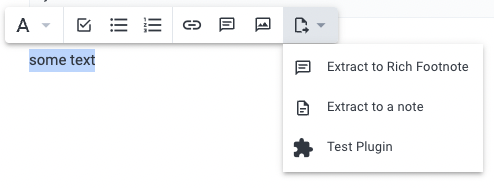
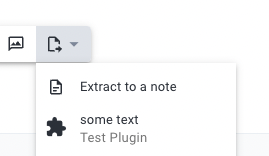
To use a different keyword than the plugin's name, return a string from the check function:
This code will result in the returned check function text being displayed to the user:
linksuggestScheduledTasks
Propose scheduling for one or more tasks, which the user can accept or dismiss on a per-task basis. app.context.setScheduledTasks is defined when this action is invoked.
Arguments
app App Interface
object in the shape of:
endAt - unix timestamp (seconds) representing the last day currently being shown by the calendar view
schedulableTasks - array of task objects representing the tasks in the current task domain that are not scheduled, or are overdue
scheduledTasks- array of task objects representing the tasks in the current task domain that are scheduled in the currently shown calendar view
startAt - unix timestamp (seconds) representing the first day currently being shown by the calendar view
taskDomain - the taskDomain object representing the currently selected task domain
Returns
Array of suggested task schedules, each entry and object with the following properties:
endAt - optional unix timestamp (seconds) describing the suggested end time for the task (controlling duration)
explanation - optional string describing why the scheduling is being suggested for this task
startAt - (required) unix timestamp (seconds) describing the suggested start time for the task
task - optional task representing a new task that should be scheduled. Ignored if taskUUID is provided. The task object must contain at least a valid noteUUID attribute indicating the target note to add the task to. The user will not be informed if the target note is not in the current task domain (in which case adding the task may not show it on the calendar view, depending on user settings).
taskUUID - optional string describing an existing task that should be scheduled
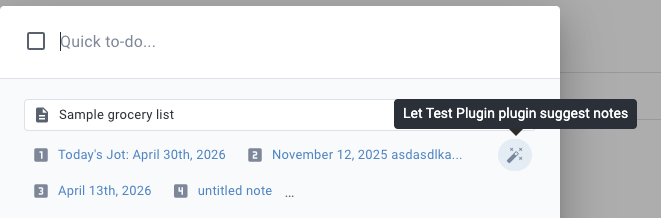
linksuggestTaskTargetNotes
Given a task, allows the plugin to suggest an ordered set of notes that the task could be added to. app.context.setTaskTargetNotes will be defined when this action is invoked.
Arguments
app App Interface
task the task being added, which may not have any content of consequence yet.
suggestedNoteHandles an Array of noteHandle objects that represent the current suggestions (typically 1-7 notes)
Returns
Array of suggested noteHandles or note UUID string values representing the suggested notes, with the best suggestions first
linktaskOption
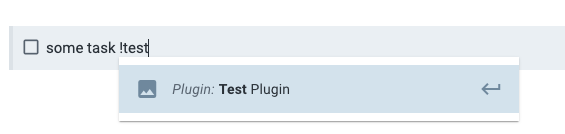
Adds options to the task commands menu (invoked when typing ! in the body of a task).
Arguments
app App Interface
task the task the option was invoked on
Returns
Nothing
linkvalidateSettings
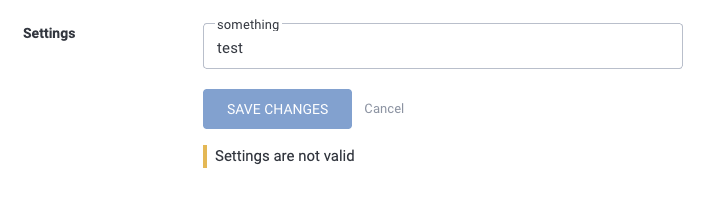
When plugin settings are saved, this presents an opportunity to ensure that the settings are correctly set up, e.g. if the user is entering an API key for a third-party service, it can be validated to present the user with a message if it is not a valid API key.
Arguments
app App Interface - note that is is a very limited app interface, without the vast majority of the typical app interface functions
settings the settings Object that has been saved. Note that app.settings will reflect any changes as well, matching this argument.
Returns
An array of strings describing issues with the settings, or any false-y value to indicate that there are no problems with the settings.