Ample Agent Pro has a feature built to capitalize on the synthesis of "modern LLMs" and "one number to dictate task priority" (i.e., Task Score). It's called "Task Rescorer," and this page will describe how to use it.
linkRemind me why we are assigning scores to tasks again?
One of Amplenote's most unique features is its "Task Score" algorithm that automatically calculates a number that suggests which tasks most deserve your valuable attention.
Since both Tasks View and Calendar View collect together all your tasks from across all your notes, it quickly gets overwhelming to even look at your entire list of possible tasks. By assigning a thoughtfully calculated number to each task, Task Score reduces time spent mulling which tasks merit attention.
The shortcoming of Task Score is obvious: there is no one perfect way to know what sort of tasks are most important to you today. LLMs to the rescue: with even a few words of direction, you control what tasks float to the top of your list. Rescore tasks every month, week, or even day, to ensure that the tasks you see when you visit the calendar are the tasks that deserve a spot on the daily agenda.
Pinpointing which tasks are most important to get done soon is a powerful differentiator when wielded by CEOs, execs, or other doers who need every minute spent optimally.
linkOpen Task Rescorer
You can begin your task scoring exercise from a note, or from the global "Open" dialog.
From a note, if you've got tasks present, you can pick "Task Rescorer" from the "Plugins" menu after clicking the Note Options triple dot. From the "Open Note" dialog, start typing "rescore" and you'll see "Task Rescorer" available to select (assuming Ample Agent Pro is installed).
linkWhich tasks to score?
When Task Rescorer is invoked from a non-note context, you'll begin with a prompt to clarify which tasks you want to operate on:
Everything: What it sounds like
Task Domain: Score the most valuable tasks from your chosen Task Domain.
Tag: Score tasks that reside in notes (projects) containing the tag selected, or a child of the selected tag
Note: Score the note's tasks
Up to 100 tasks will be scored per invocation.
linkScoring tasks by enjoyability and more
After you choose the source for your tasks, you'll get the chance to specify what should be used to direct the updated scores. As of this document's authoring, task scores can be shifted toward:
Your currently quarterly plan (as created by the Amplenote Mission Control Dashboard)
What's most fun?
What's fastest?
What's newest?
Using instructions from a note
Using ad hoc instructions
In addition to choosing your preferred sorting algorithm, you can pick the maximum value to assign to tasks. Remember: A red task has 10 Task Score, yellow has 7, blue is 4 or more. We default to a maximum Task Score of 10 so you will likely only have a couple red tasks after running a task rescore.
After choosing your option, the LLMs will launch multiple parallel scoring requests to re-rate your top 100 tasks in about 10 seconds.
linkFinalizing new scores
After the selected tasks are evaluated, you'll be presented a summary of the new recommended scores for each task. Click a score's value to change it:
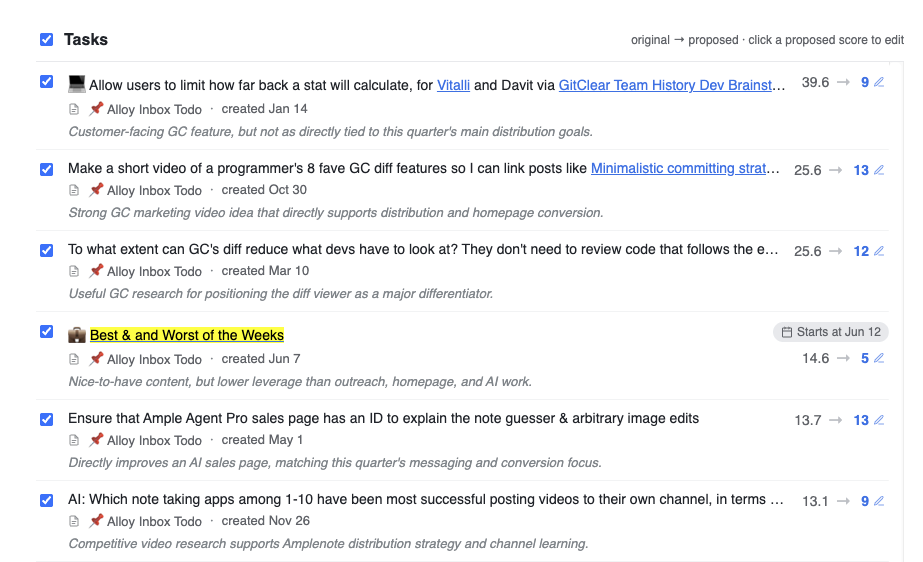
Finalizing Task Score updates after re-weighting by quarterly plan
If you confirm an updated score of 0 points, the task in question will be dismissed.
linkApplying new scores
After you've reviewed the proposed scores, click or tap "Apply" to batch update every task to its new value.
As days pass, the usual Task Score algorithm will gradually elevate the scores of the tasks, per its usual criteria.